How to Add Tooltip Text to Elementor Button?

Key Takeaways

  • The Plus Addons for Elementor Button widget allows users to add tooltip text to buttons.
  • Users can select between Content Text and Content WYSIWYG for tooltip content in the Content Type dropdown.
  • The tooltip content can include images, videos, and emojis when using the Content WYSIWYG option.
Table Of Content

Are you looking to add tooltip text to an Elementor button? Adding tooltip text to buttons can provide useful information or descriptions when a user hovers over the button. This simple yet effective feature can greatly improve the user experience and make your website more interactive.

With the Button widget from The Plus Addons for Elementor, you can easily add a tooltip to a button in Elementor.

To check the complete feature overview documentation of The Plus Addons for Elementor Button widget, click here.

Requirement  – This widget is a part of The Plus Addons for Elementor, make sure it’s installed & activated to enjoy all its powers.

To do this, add the Button widget to the page and follow the steps – 

1. Select the appropriate button style and add the text to the button.

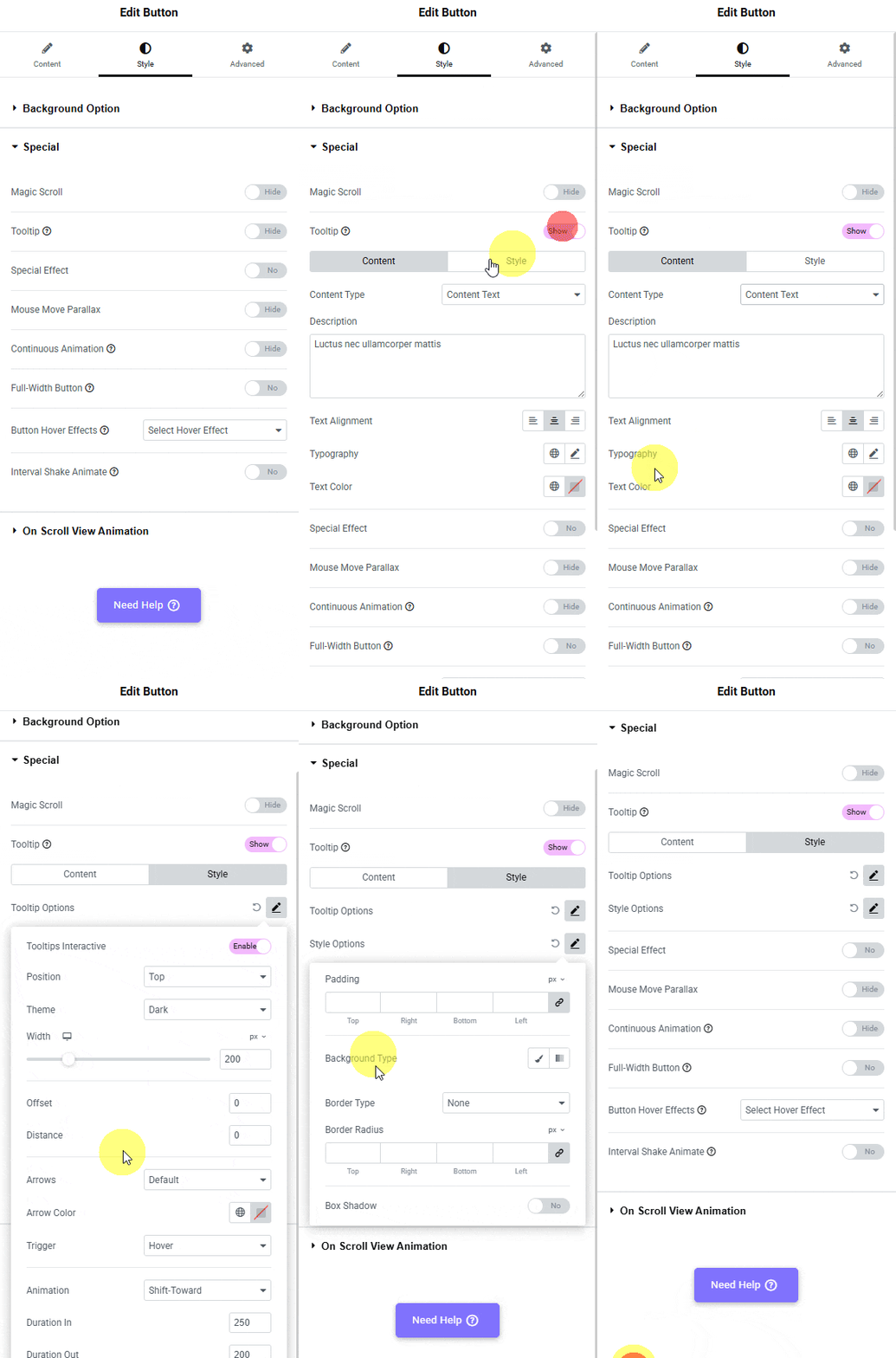
2. Then go to Style > Special tab and turn on the Tooltip toggle.
Tpae button style tooltip how to add tooltip text to elementor button? From the plus addons for elementor

3. From the Content Type dropdown, under the Content tab, you can select between Content Text and Content WYSIWYG as the editor to add the tooltip content. Select the option as per your requirements.

Note: With the Content WYSIWYG option, you can add different types of content like images, videos, emoji etc. to the content as well.

4. Then, in the Description section, you have to add the tooltip content.

From the Text Alignment section, you can align the content.

Then, from the Typography section, you can manage the tooltip content typography.

You can manage the text color from the Text Color section.

Then, from the Style tab, you can style the tooltip using the Tooltip Options and Style Options group control.

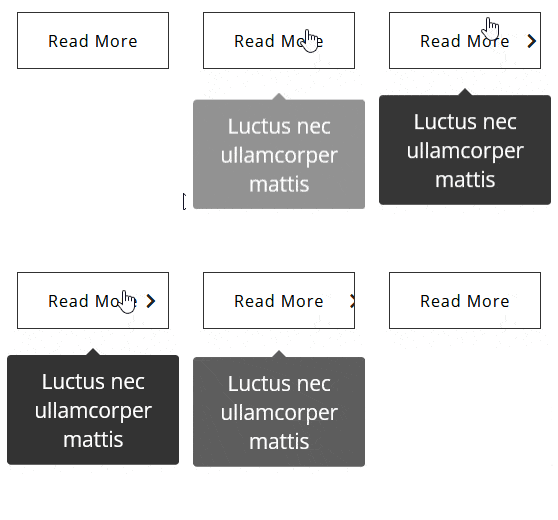
Now, you’ll see a tooltip when you hover over the button.

Button tooltip demo how to add tooltip text to elementor button? From the plus addons for elementor
Get Instant Answers to all your questions about The Plus Addons for Elementor, trained on 1000+ Docs and Videos

Related Frequently Asked Questions

What should I do if the tooltip doesn't appear when I hover over the button?

If the tooltip isn't showing, first ensure that you've activated the Tooltip toggle in the Style > Special tab of the Button widget settings. If it's activated and still not visible, double-check that you've added content in the Description section under the Content tab. Sometimes, missing content can prevent the tooltip from displaying.

What are the best practices for styling tooltip text in Elementor?

When styling tooltip text, consider using the Typography section to ensure readability. Adjust the text color and alignment to match your site's design. The Plus Addons for Elementor allows you to manage these settings, helping you create a tooltip that is both informative and visually appealing.

Does the tooltip feature work with all Elementor widgets?

The tooltip feature is specific to the Button widget from The Plus Addons for Elementor. It does not apply to other Elementor widgets unless they also support tooltip functionality. For a complete overview of features, refer to the Button widget settings documentation.

How can I set up global tooltips for all Elementor widgets?

To set up global tooltips across your Elementor widgets, you can follow the guidelines in the setup global tooltips in Elementor widgets documentation. This allows for a consistent tooltip experience throughout your site, improving usability.

Last reviewed: April 10, 2026