
 Doc Summary

BetterDocs आप के साथ सहज एकीकरण देता है Elementor। अब आप अपने डिजाइन कर सकते हैं Elementor में सिंगल डॉक Elementor थीम बिल्डर का उपयोग करके किसी भी कोडिंग के बिना। एक बार जब आप अपने एकल दस्तावेज़ पृष्ठ के लिए एक टेम्पलेट डिज़ाइन करते हैं, तो आप इसे सहेज सकते हैं और फिर इसे अपने प्रत्येक एकल दस्तावेज़ पृष्ठों के लिए फिर से उपयोग कर सकते हैं।
ध्यान दें: Elementor थीम बिल्डर एक ऐसी सुविधा है जो केवल साथ उपलब्ध है Elementor प्रो। तो, कॉन्फ़िगर करने के लिए Elementor में सिंगल डॉक, you must have the Pro version of Elementor installed and activated.
BetterDocs में अपने सिंगल डॉक को डिजाइन करने के लिए आप BetterDocs का उपयोग कैसे कर सकते हैं, यह जानने के लिए इन चरण-दर-चरण निर्देशों का पालन करें।
Step 1: Create a New Single Doc in Elementor Theme Builder #
पर जाए WordPress डैशबोर्ड → Templates → Theme Builder अपने WordPress डैशबोर्ड से। पर क्लिक करें 'नया जोड़ें' button and select ‘सिंगल डॉक’ as your template type. Choose any template and click on the ‘Insert’ button. Your new template will now open in the Elementor editor.
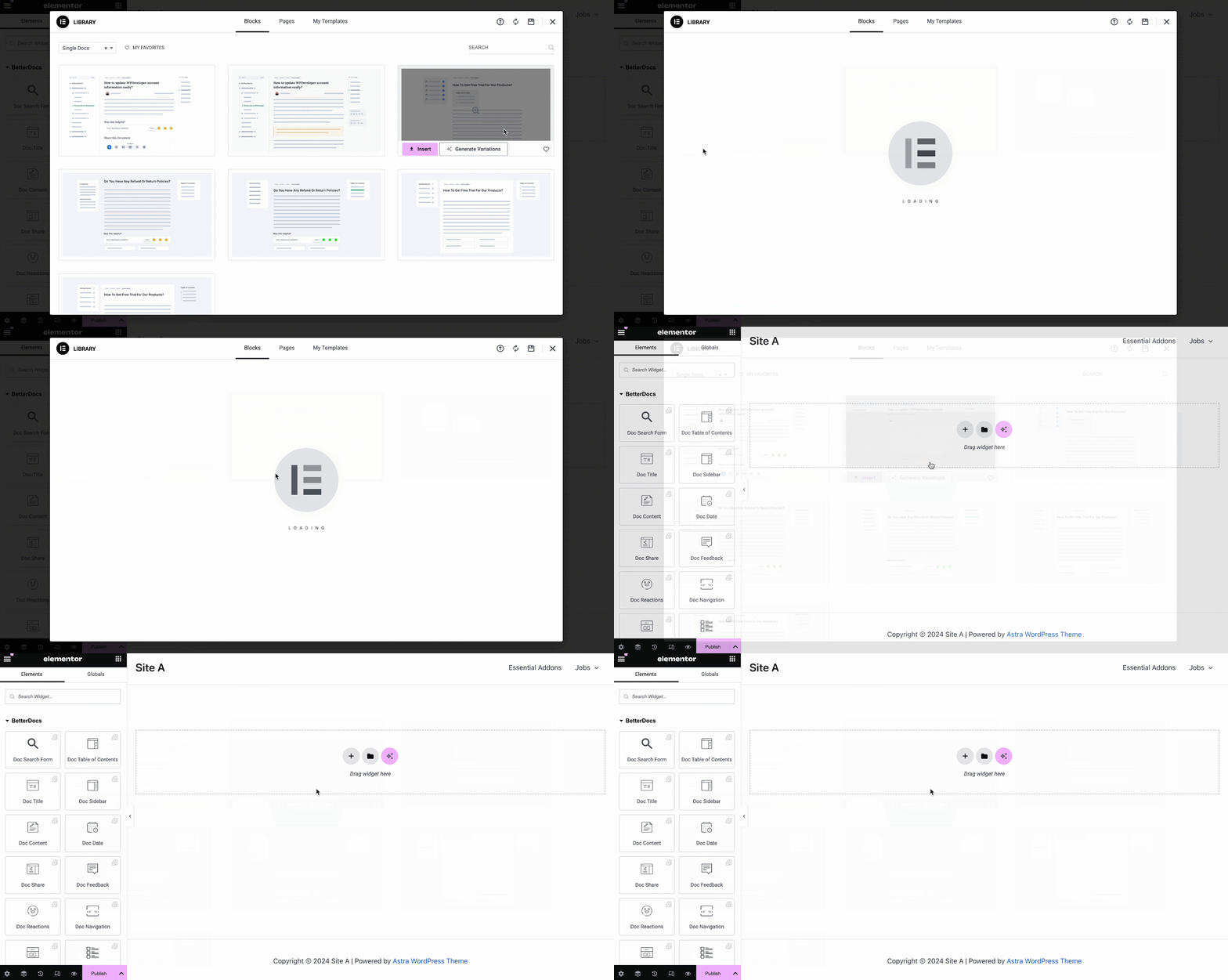
You can use BetterDocs premade-ready widgets to instantly create your single doc page. Or you can customize your single doc page from scratch by configuring different elements as shown in the next step.
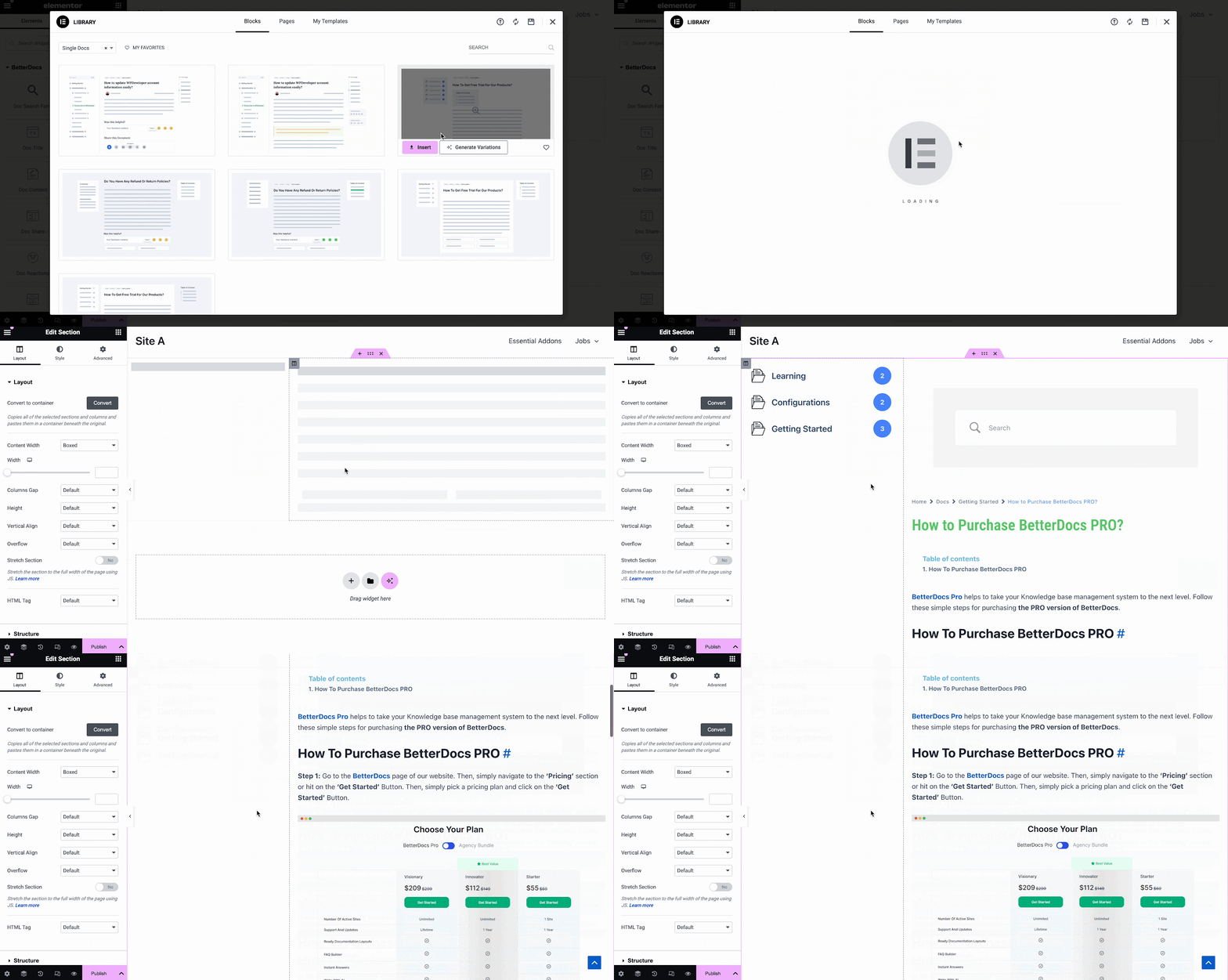
Step 2: Customize Single Doc in Elementor #
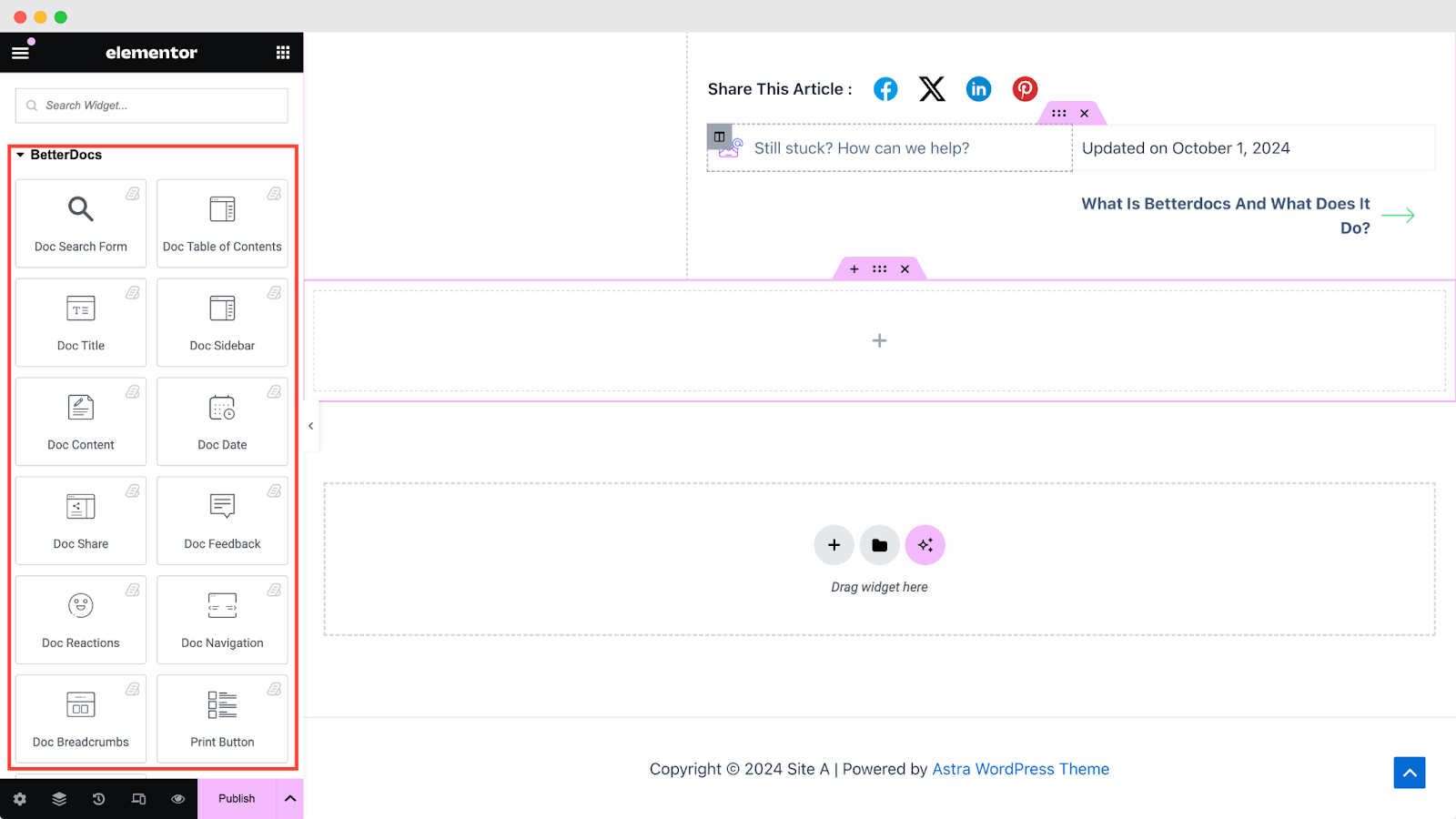
वहाँ से 'तत्वों' tab in Elementor Editor, you should see 12 BetterDocs elements to design your Single Doc page template. You can drag and drop these elements anywhere on your page to use them.
Doc खोज प्रपत्र #
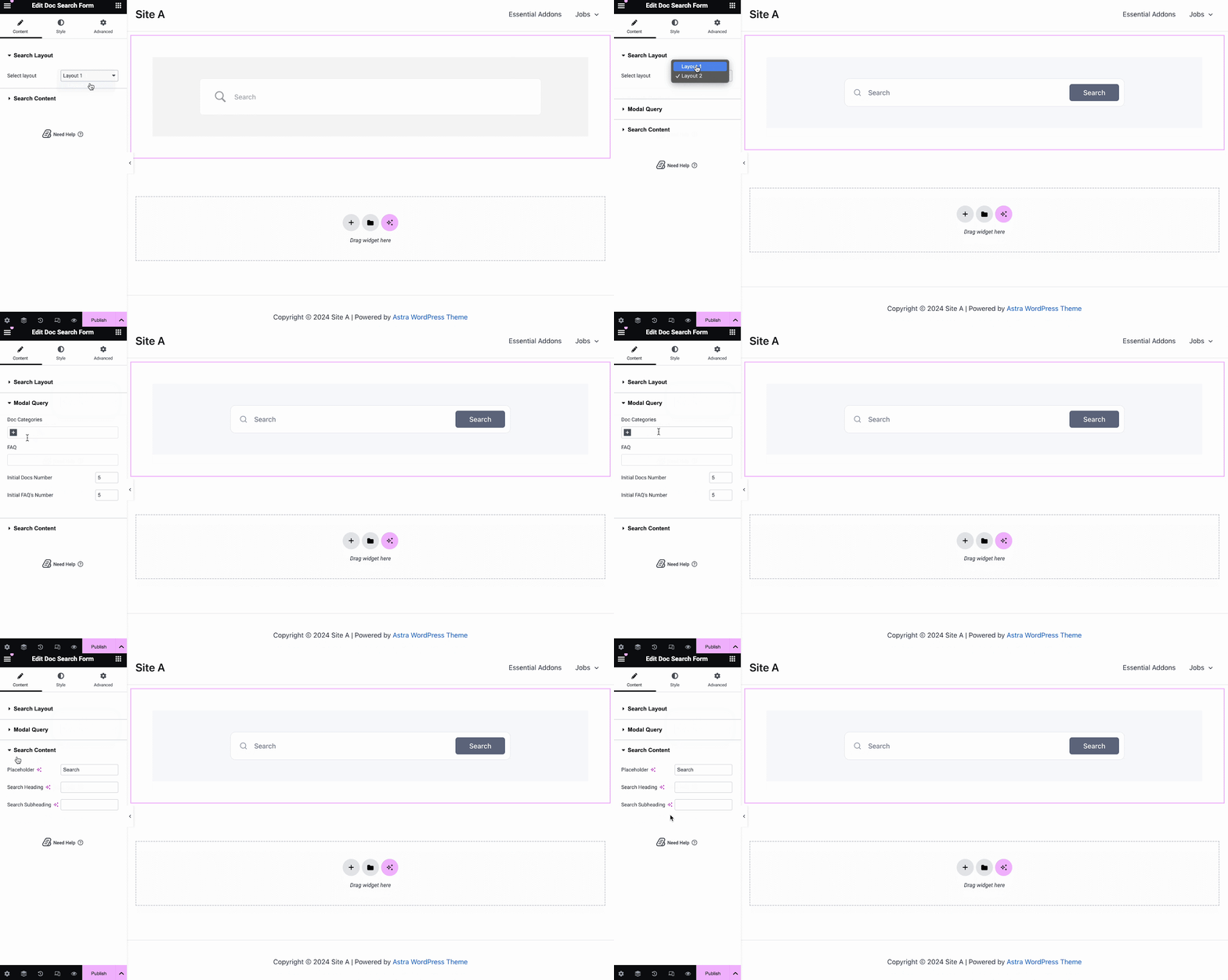
The Doc खोज प्रपत्र तत्व की मदद से आप अपने लिए लाइव सर्च बार जोड़ सकते हैं सिंगल डॉक page. To use this element, simply drag and drop it into any section of your page. Then, the element will appear on your page by default as shown below.
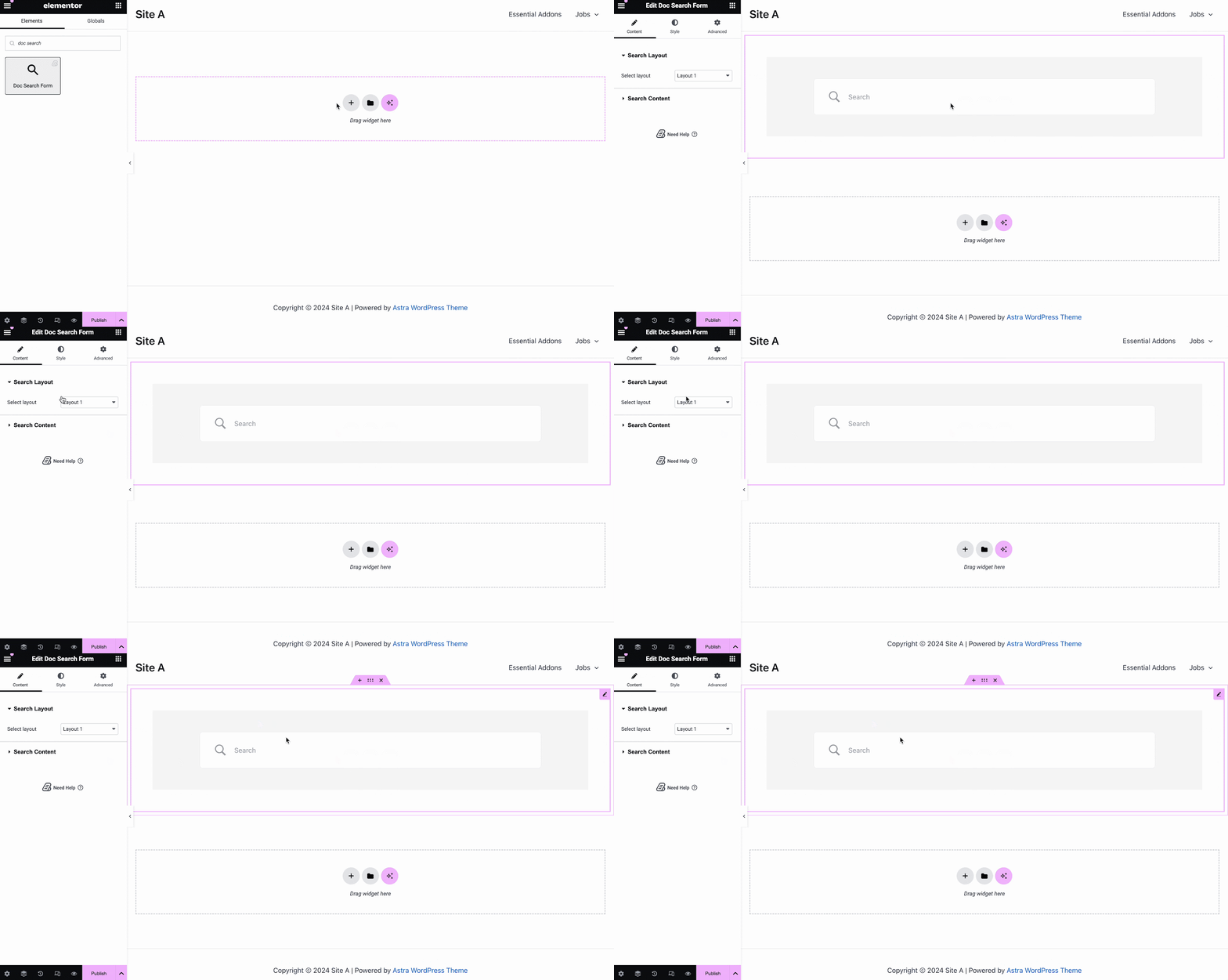
वहाँ से 'सामग्री' tab, you can choose one from two templates and customize your Doc खोज प्रपत्र. If you choose Layout 2, you will have another option to configure Modal Query, where you can set doc categories, FAQ, doc numbers, etc.
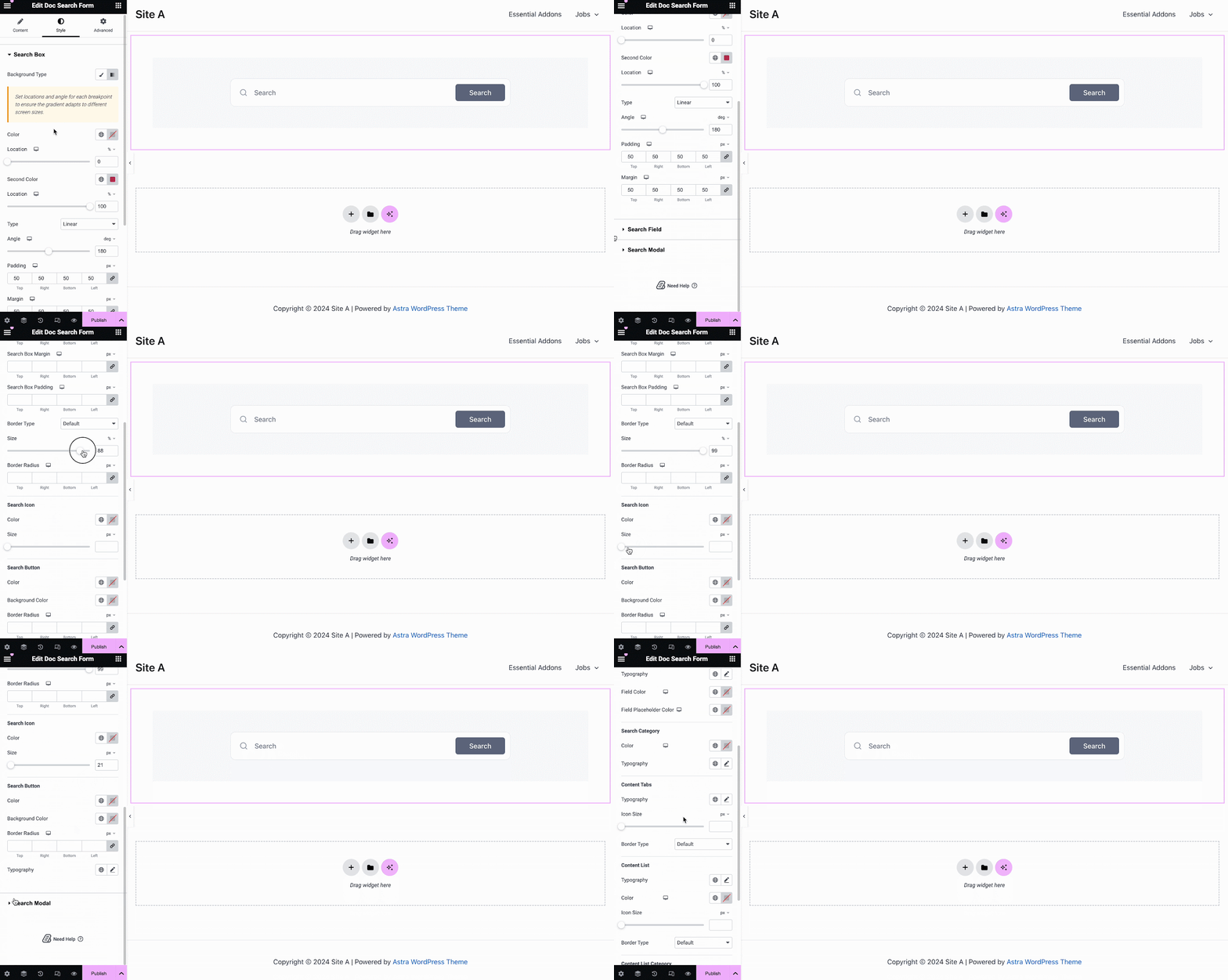
के नीचे 'अंदाज' tab, you will see options for changing the background type and color of the 'खोज बॉक्स' items. You can use images, solid colors, or gradient colors for your background.
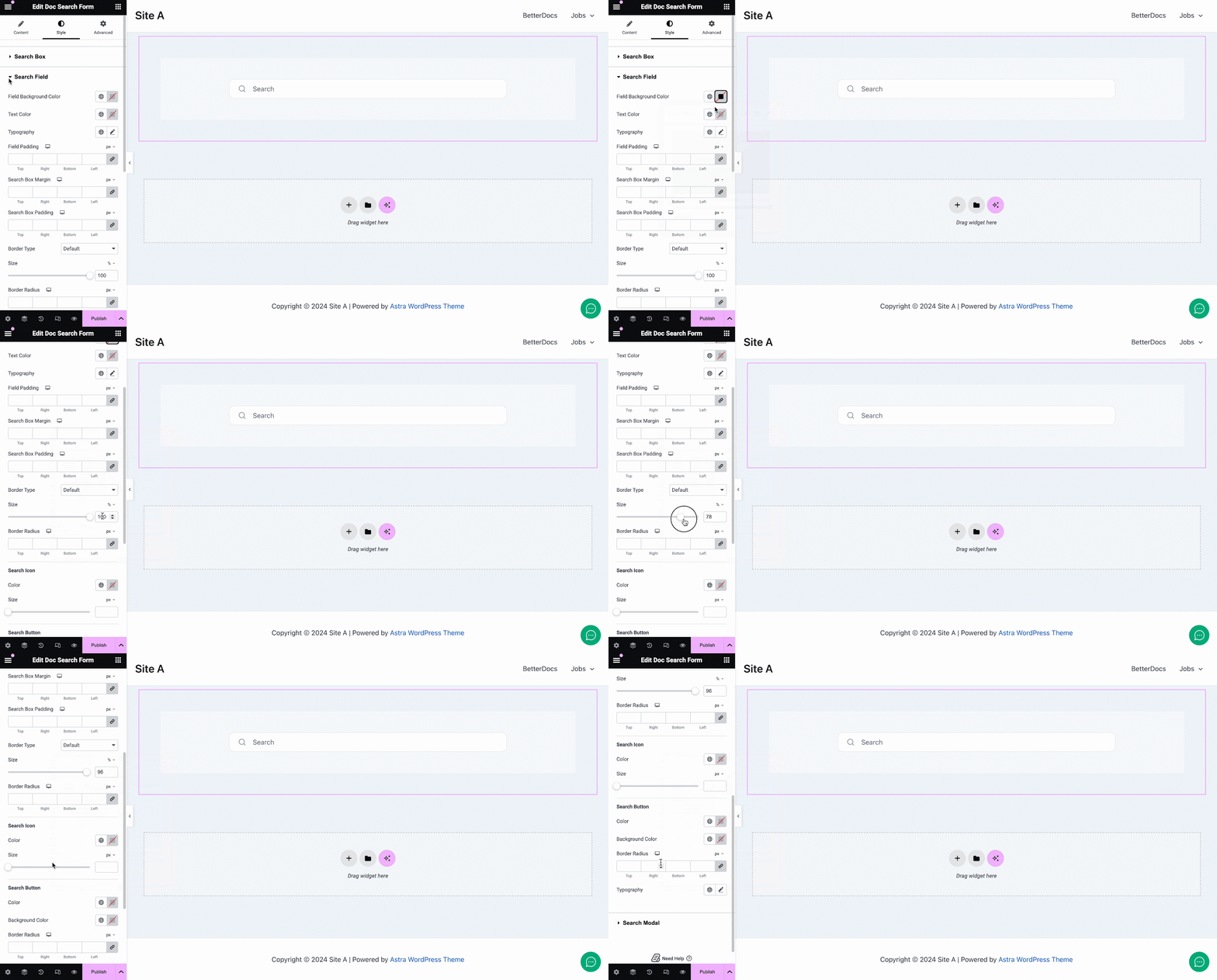
इसी तरह, के तहत 'खोज क्षेत्र' section, you have the option to change the field background color, field color, typography, padding, icons and much more. Plus, on the ‘Search Modal’ tab, you will have customization options for the search field, search category, content tab, content list, and more.
डॉक्टर की उपाधि #
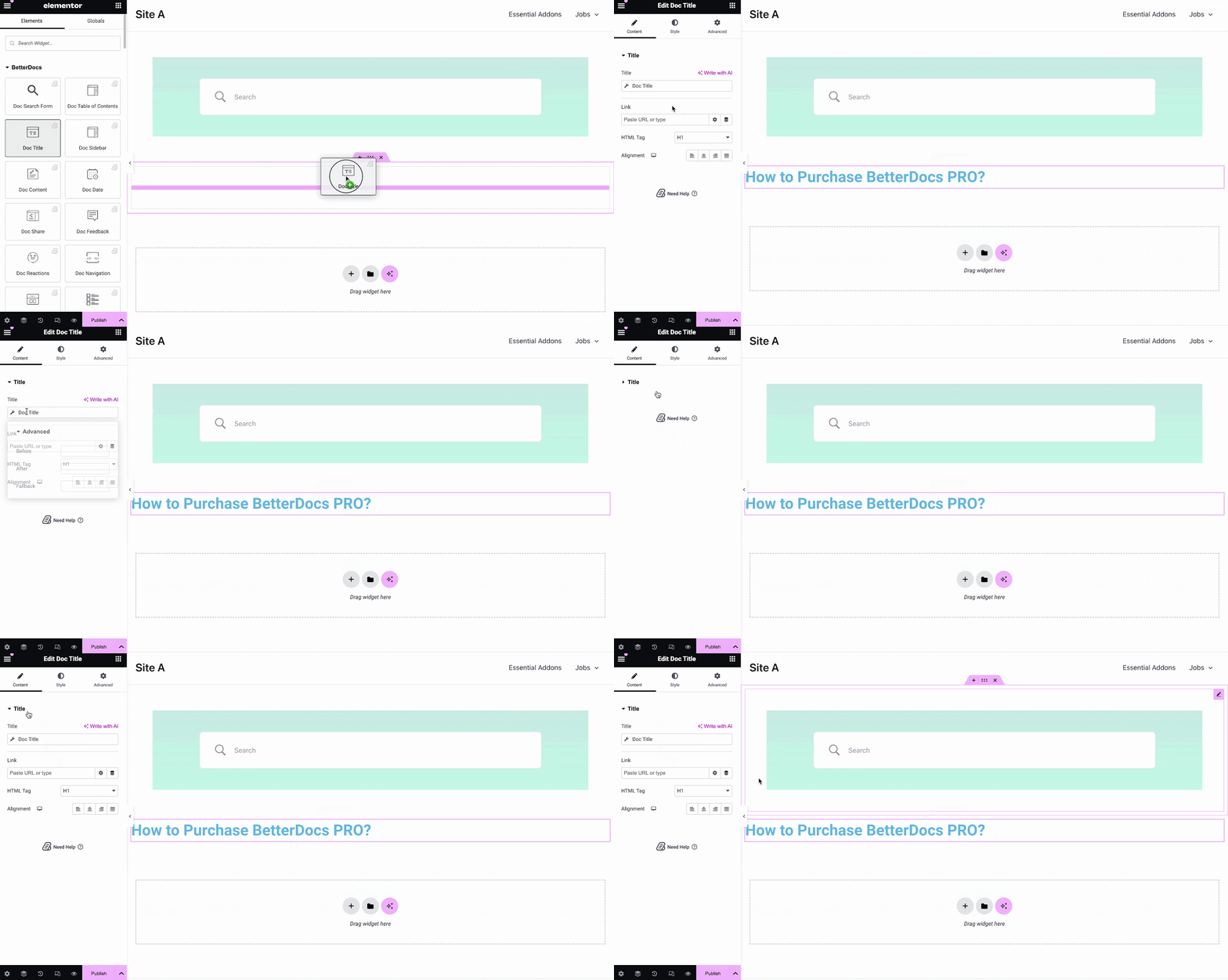
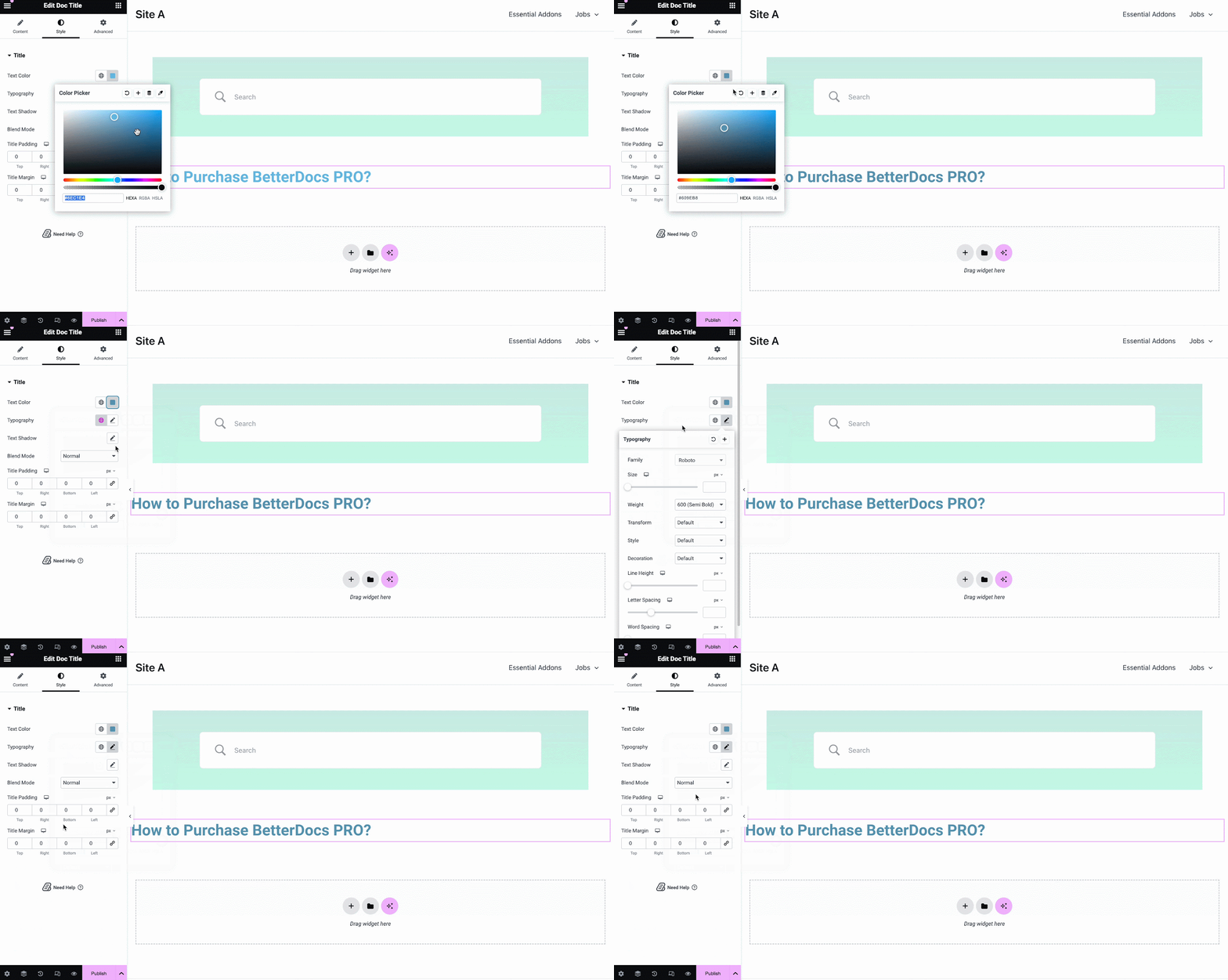
The डॉक्टर की उपाधि तत्व गतिशील रूप से आपके शीर्षक को जोड़ता है Elementor में सिंगल डॉक। वहाँ से 'सामग्री' tab, you can customize the title, link, html tag, and alignment.
वहाँ से 'अंदाज' टैब आप शीर्षक रंग, टाइपोग्राफी, मिश्रण मोड को बदल सकते हैं और यहां तक कि पाठ-छाया भी जोड़ सकते हैं।
Doc Table of Contents #
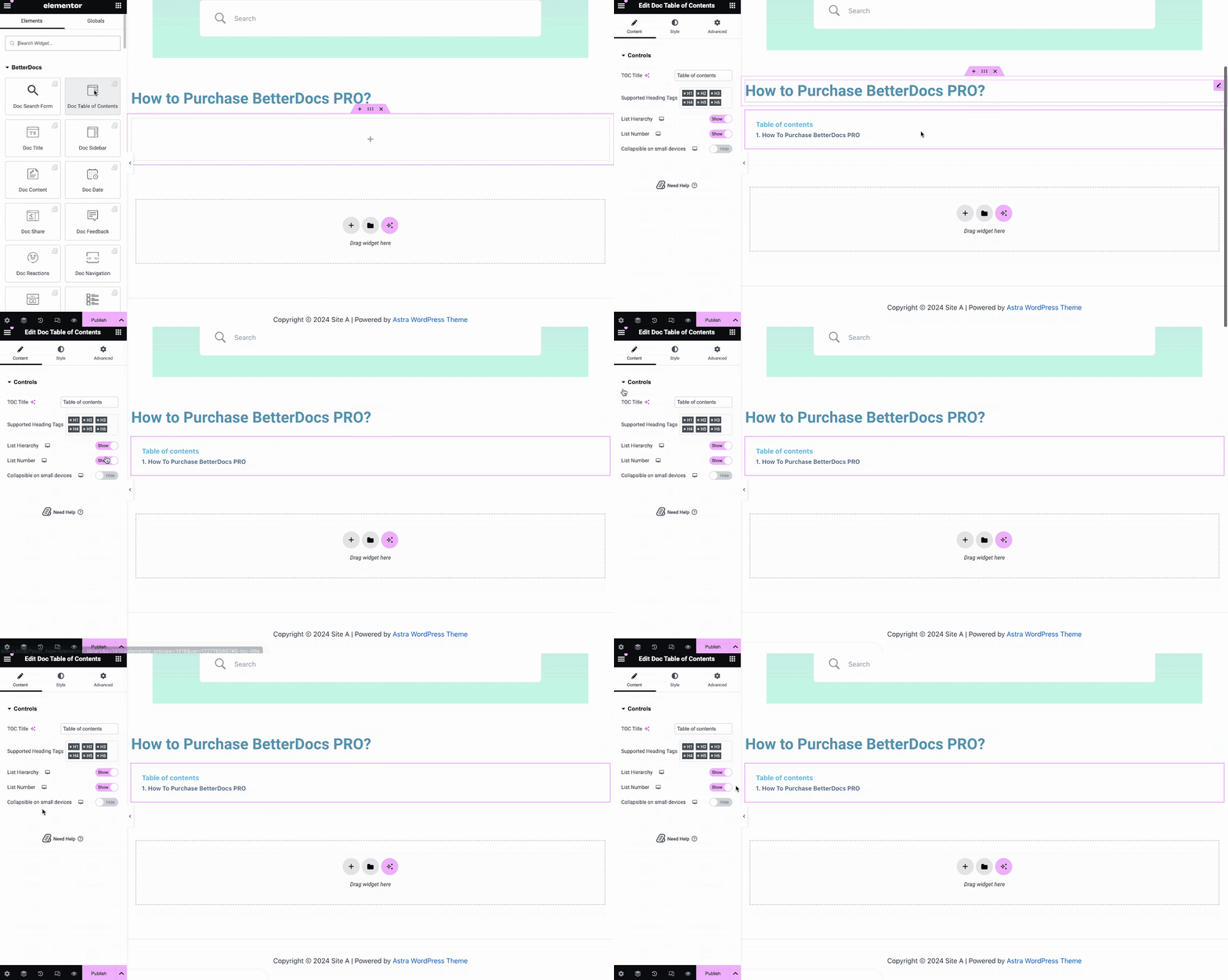
With the ‘Doc Table of Contents’ widget, you can customize the title, heading tags, hierarchy, list number and more on the Content tab, as shown below.
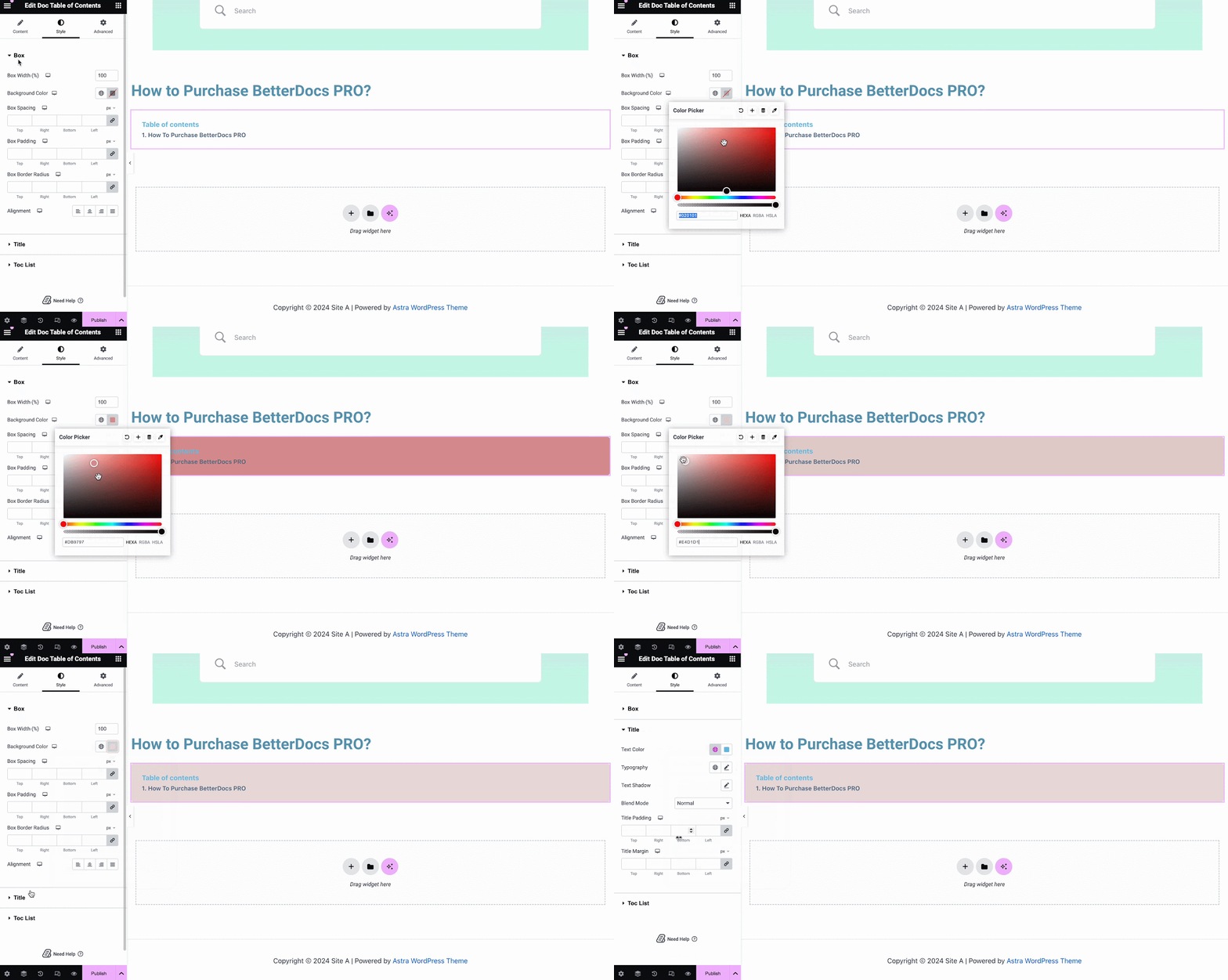
On the ‘Style’ tab, you can customize contents of the Box, Title, Toc list with the color, margin, padding, typography options.
डॉक्टर सामग्री #
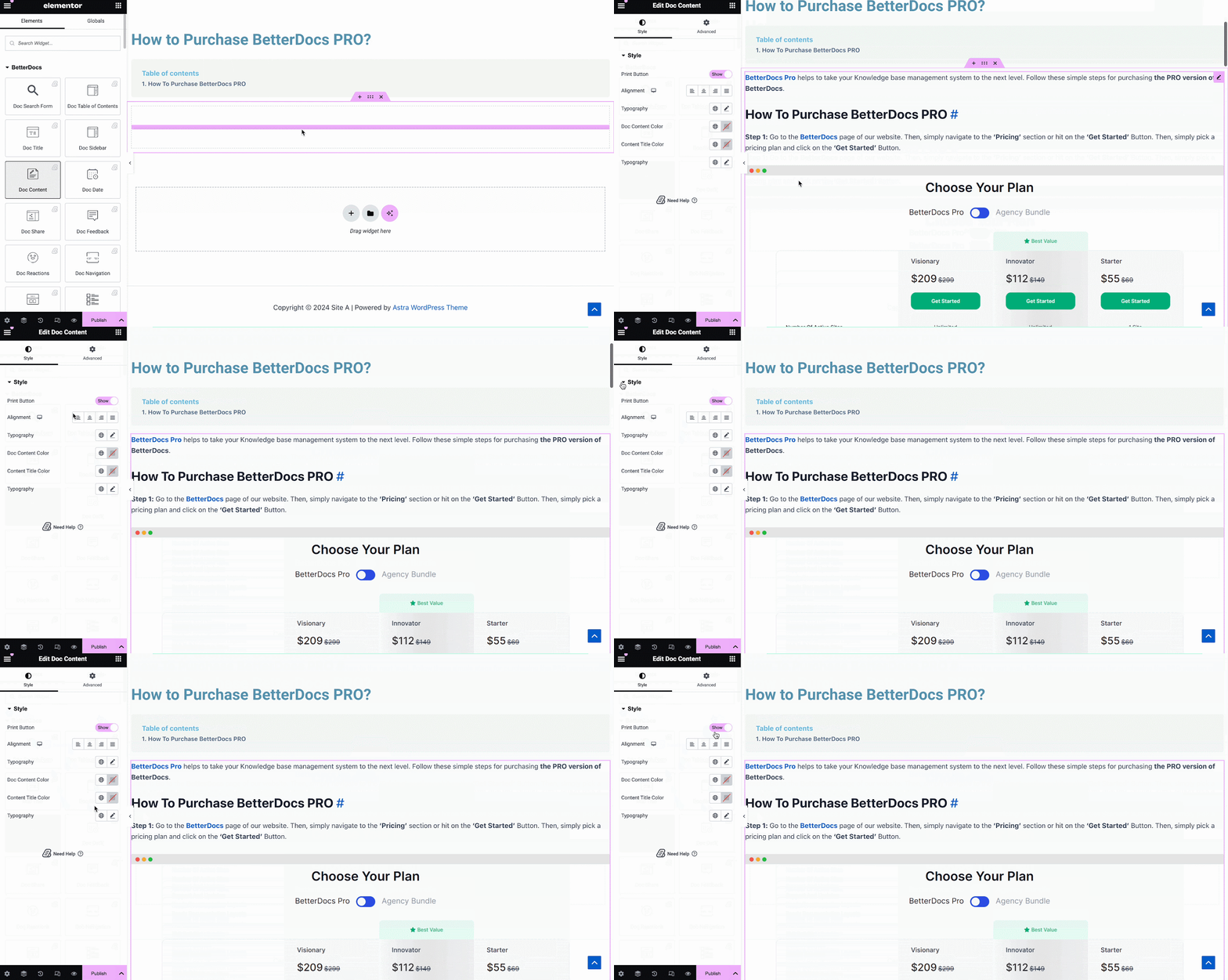
आप ड्रैग और ड्रॉप कर सकते हैं डॉक्टर सामग्री अपने एकल डॉक्टर पृष्ठ में कहीं भी तत्व। आपके दस्तावेज़ की सामग्री स्वचालित रूप से जोड़ दी जाएगी। फिर आप नीचे से संरेखण, पाठ रंग और टाइपोग्राफी बदल सकते हैं 'अंदाज' नीचे दिखाया गया टैब।
डॉक डेट #
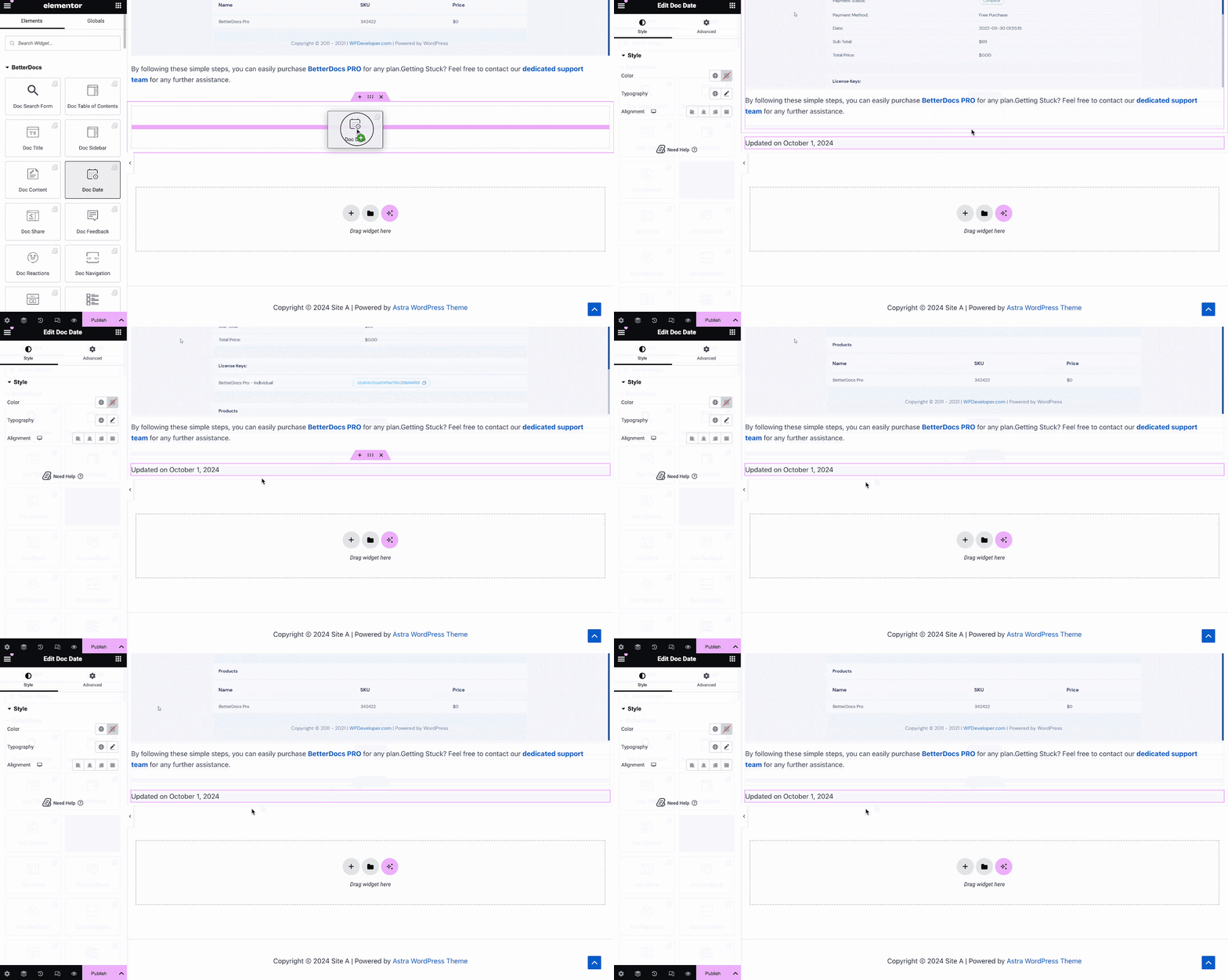
The डॉक डेट जब आप अपने दस्तावेज़ को अपडेट कर चुके हैं, तो तत्व आपको स्वचालित रूप से उस तारीख को प्रदर्शित करने देता है। आप दिनांक के रंग, संरेखण और टाइपोग्राफी को नीचे से बदल सकते हैं 'अंदाज' टैब।
डॉक्टर साइडबार #
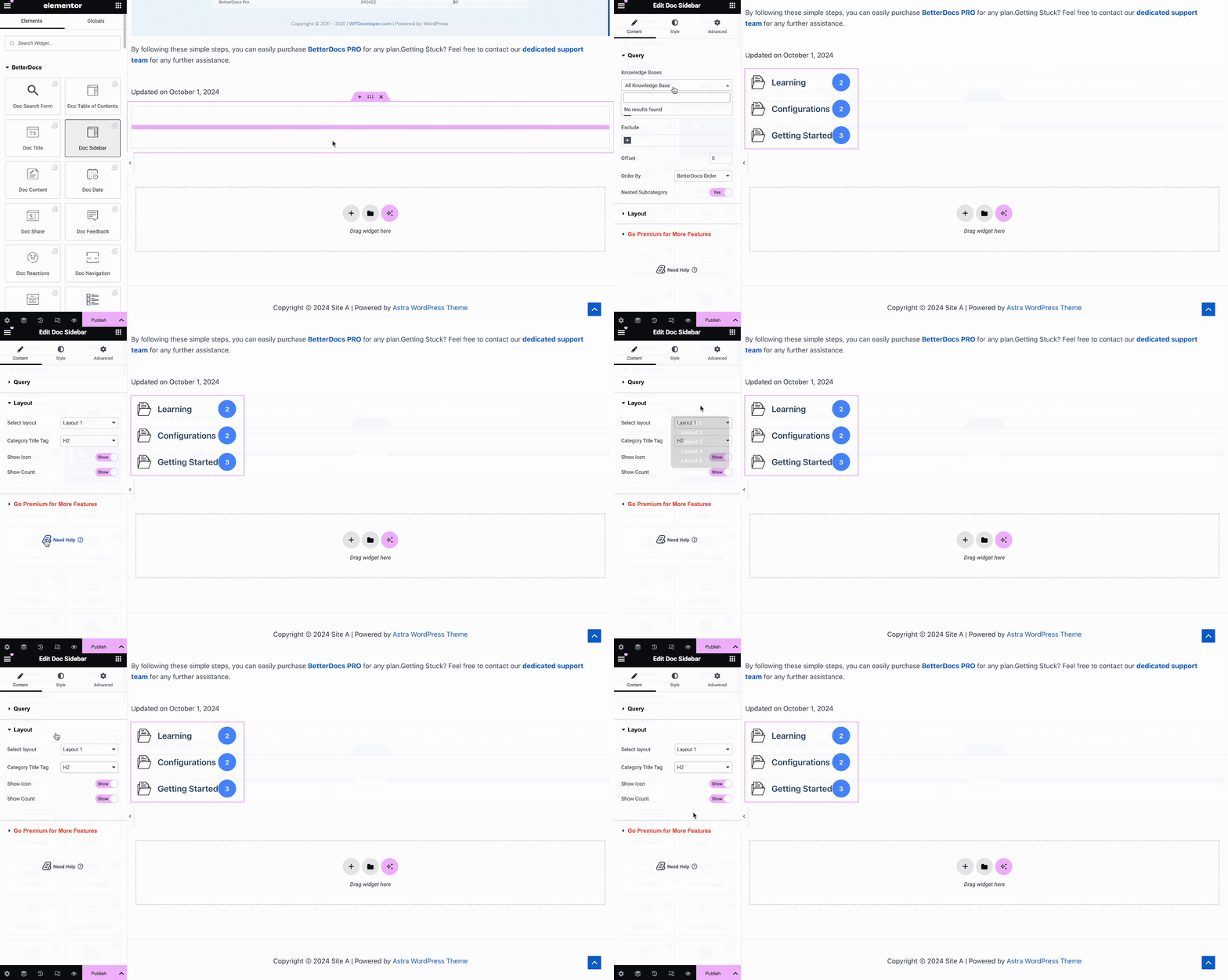
The डॉक्टर साइडबार तत्व आपको अपने लिए एक साइडबार बनाने देता है Elementor में सिंगल डॉक जो आपके द्वारा बनाए गए अन्य सभी प्रलेखन लेख और श्रेणियां प्रदर्शित करता है।
वहाँ से 'सामग्री' tab, you can choose the layout for your Doc Sidebar. Currently there are five layouts available, each with its own distinct style.
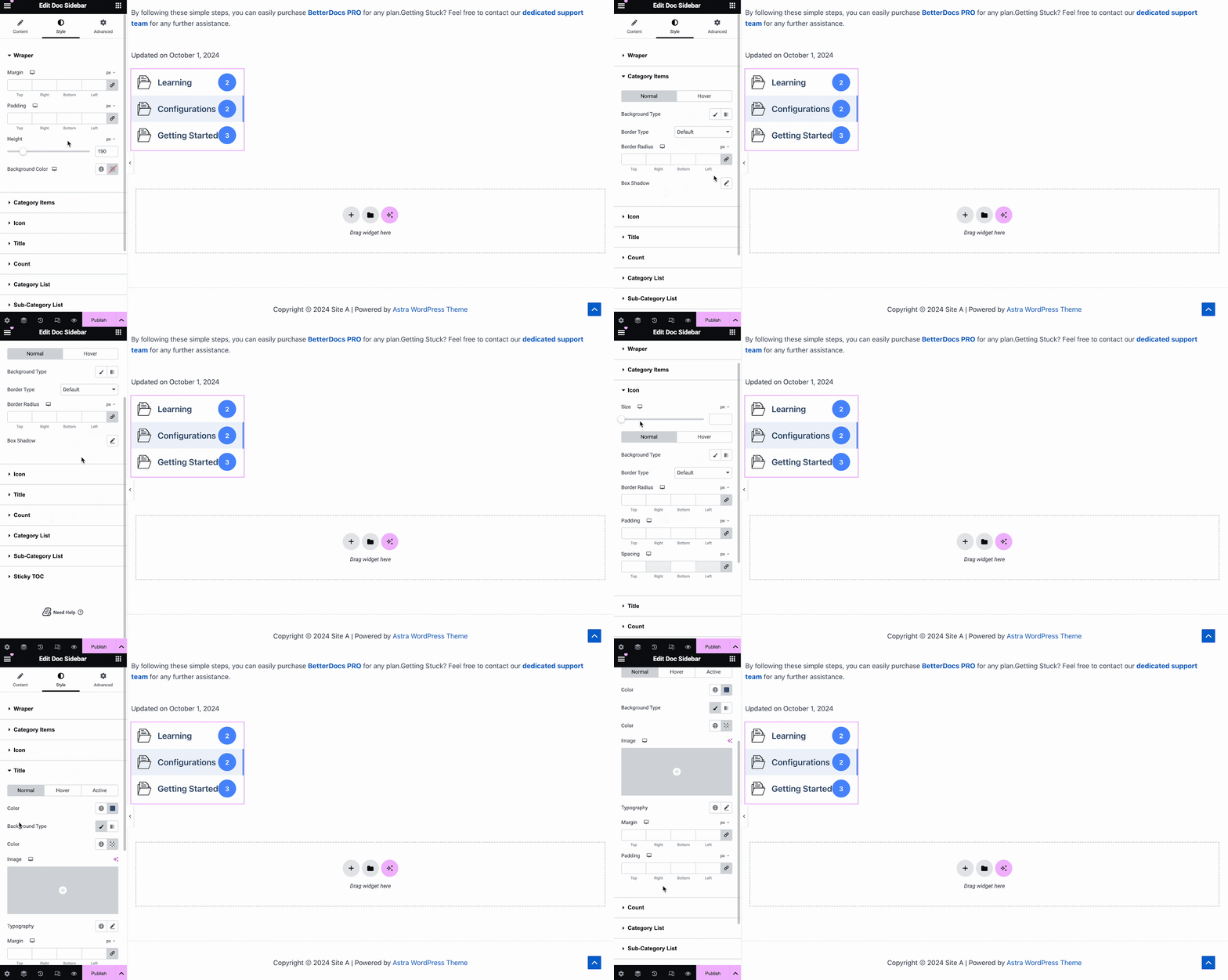
के नीचे 'अंदाज' tab, you will see several options, including Wrapper, Icon, Category Style, Title, Count, Category List, etc. with the options to customize margin, padding, color, typography and more for a more personalized look.
डॉक्टर प्रतिक्रियाएँ #
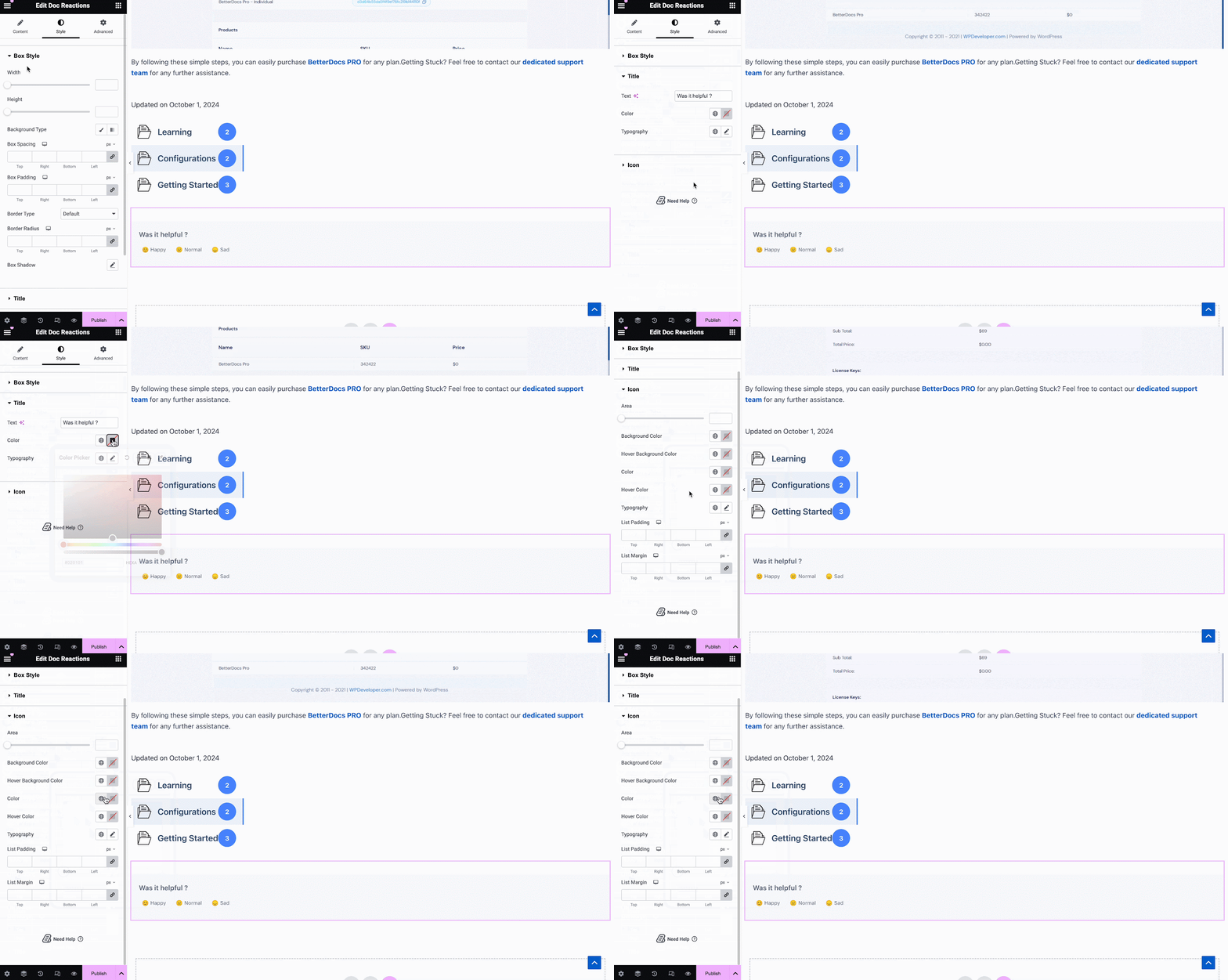
साथ में BetterDocs प्रो, आप यह पता लगा सकते हैं कि आगंतुकों के साथ साइट पर आपका प्रलेखन कितना उपयोगी है डॉक्टर प्रतिक्रियाएँ element. There are three layouts to choose from on the Content tab.
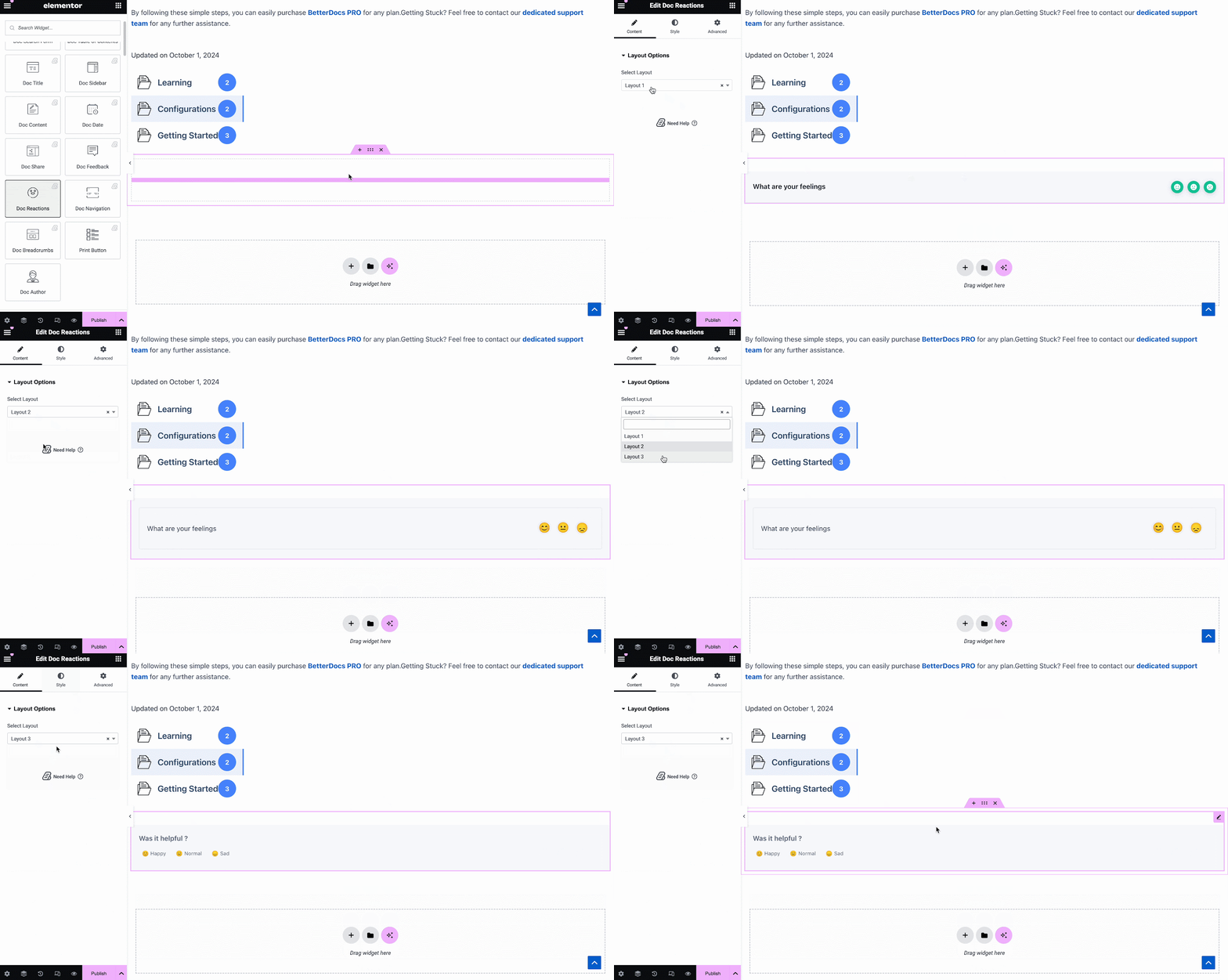
के नीचे 'अंदाज' tab, there are several options to adjust color, margin, padding, typography and more for Box Style, Title and Icon.
डॉक्टर शेयर #
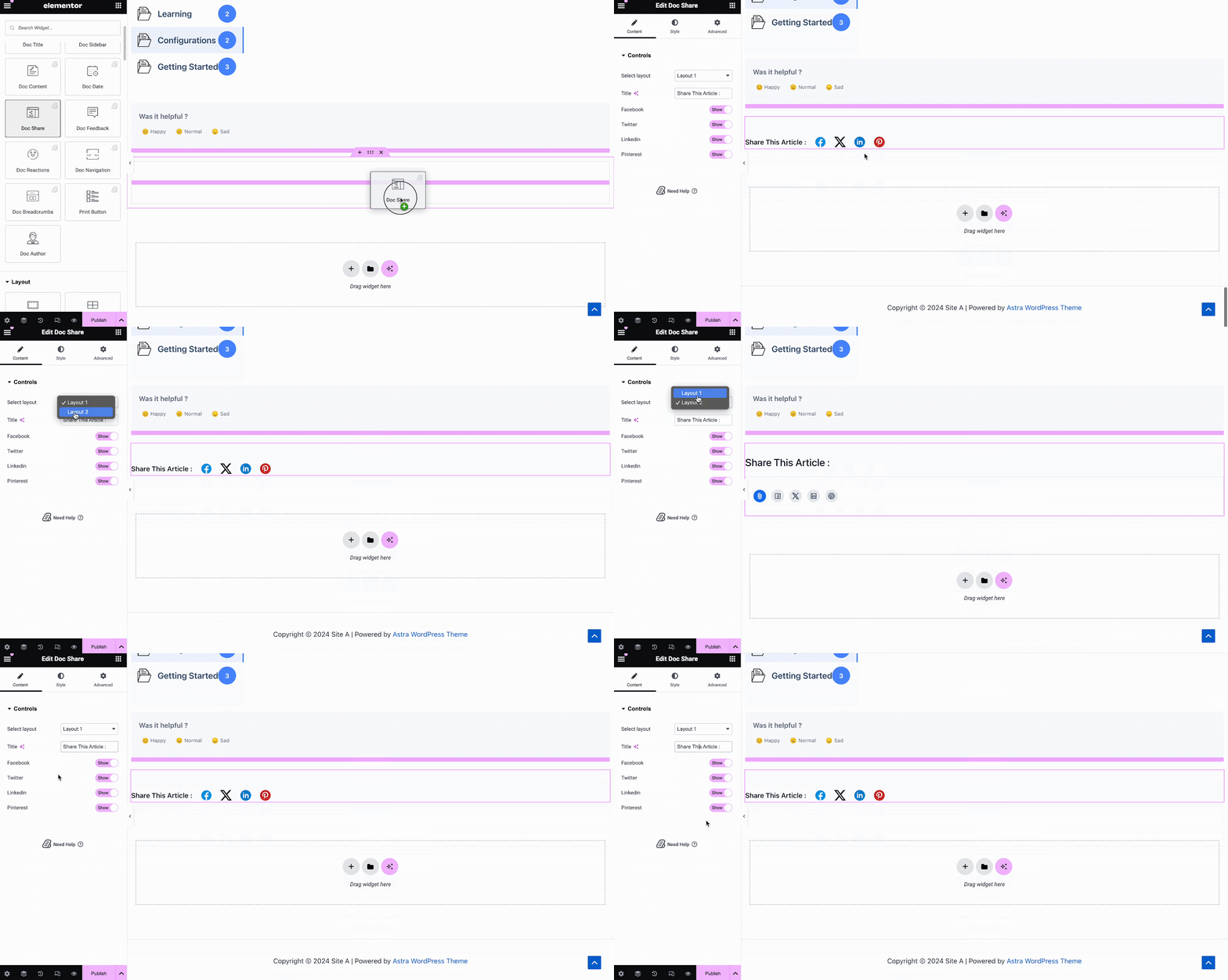
डॉक्टर शेयर तत्व आपको अपने दस्तावेज़ के लिए सामाजिक साझाकरण सक्षम करने देता है। इस तत्व के साथ, साइट विज़िटर आपके दस्तावेज़ को विभिन्न सोशल मीडिया प्लेटफार्मों पर साझा कर सकते हैं। बस अपने में कहीं भी तत्व को खींचें और छोड़ें सिंगल डॉक in Elementor to activate it. On the ‘Content’ tab, you will find two layouts, options to change titles and buttons for four popular social media.
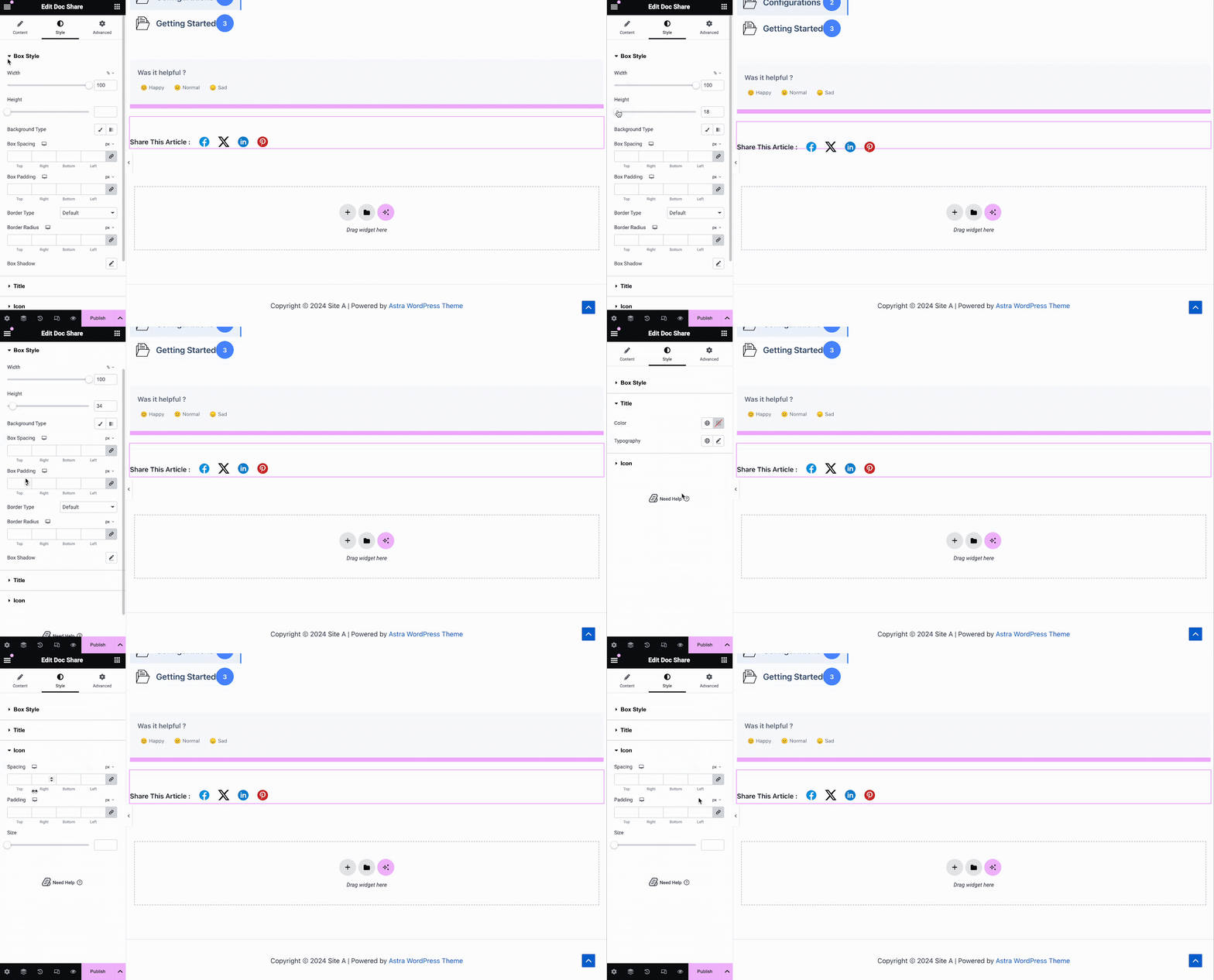
के नीचे 'अंदाज' टैब आपको अनुकूलित करने के लिए कई विकल्प दिखाई देगा Doc Share, Title, तथा Icon with margin, padding, color, typography, and more for more personalization.
डॉक्टर का फीडबैक #
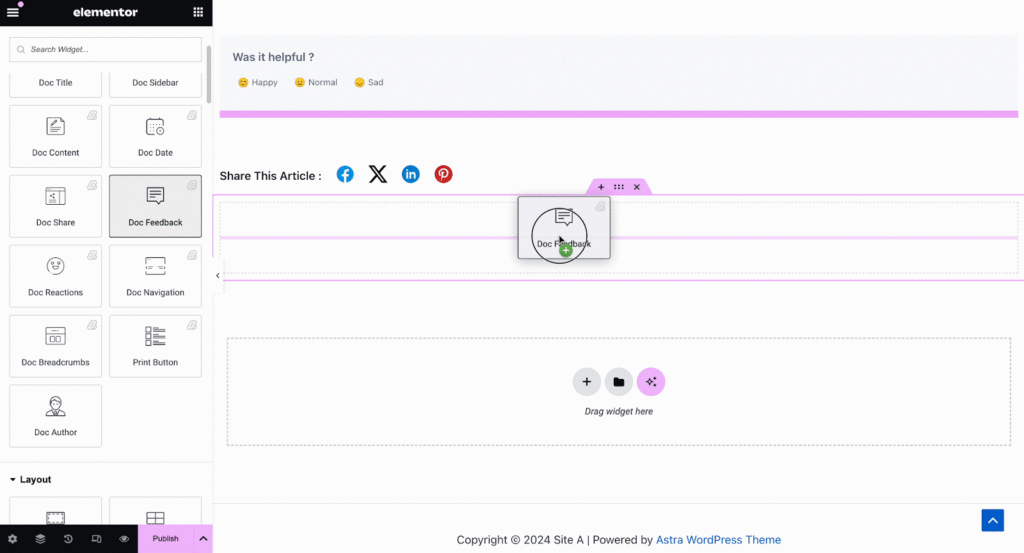
डॉक्टर का फीडबैक तत्व आपको अपनी साइट के आगंतुकों के लिए एक फीडबैक फॉर्म जोड़ने देता है जिसका वे आगे सहायता के लिए आपसे संपर्क करना चाहते हैं। इस तत्व को सक्रिय करने के लिए, इसे कहीं भी अपने ऊपर खींचें और छोड़ें सिंगल डॉक पृष्ठ।
इसके बाद, अपनी सामग्री को कॉन्फ़िगर करें डॉक्टर का फीडबैक के तहत से तत्व 'सामग्री' टैब। यहाँ, से 'सामान्य' section, you can add your custom content feedback, button text, and icon image for the form.
Under the ‘Style’ tab you will see several options to customize the Text, Icon, and Feedback Form with margin, padding, color, typography, and more for more personalization.
डॉक्टर नेविगेशन #
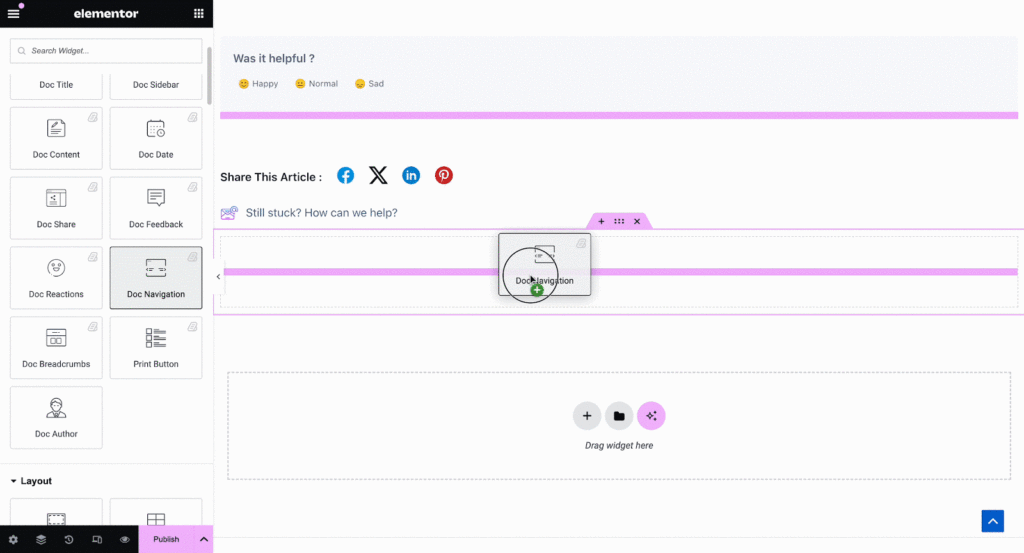
उसके साथ डॉक्टर नेविगेशन तत्व, आप साइट विज़िटर को अगले दस्तावेज़ में तेज़ी से जाने दे सकते हैं या पिछले दस्तावेज़ पर वापस जा सकते हैं। इस तत्व को सक्रिय करने के लिए, इसे कहीं भी अपने ऊपर खींचें और छोड़ें Elementor में सिंगल डॉक. On the Content tab, you will have two different layouts to choose from.
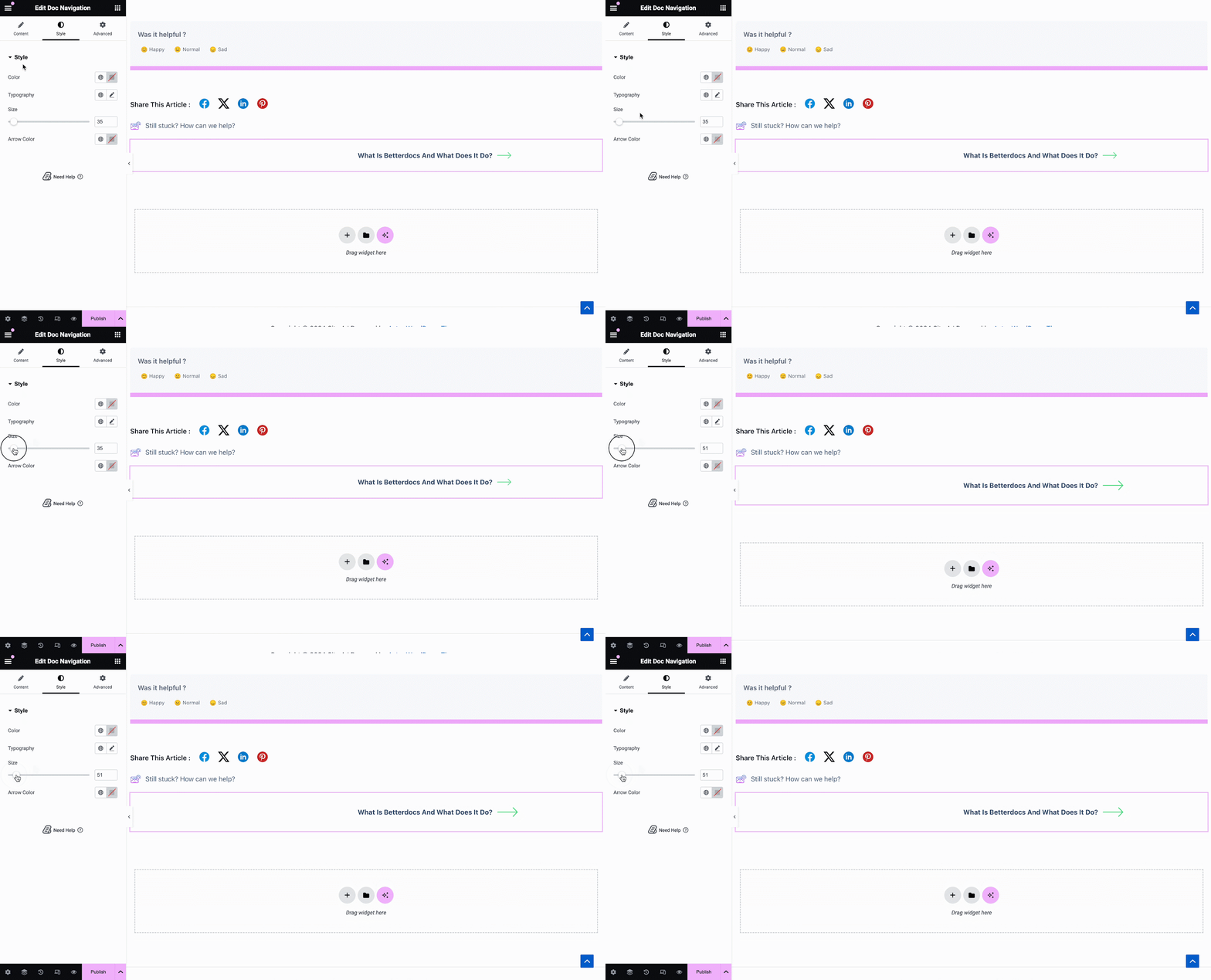
वहाँ से 'अंदाज' अनुभाग आप अपनी उपस्थिति को अनुकूलित कर सकते हैं डॉक्टर नेविगेशन रंग, टाइपोग्राफी, साथ ही तीरों के आकार और रंग को बदलकर तत्व।
Doc Breadcrumbs #
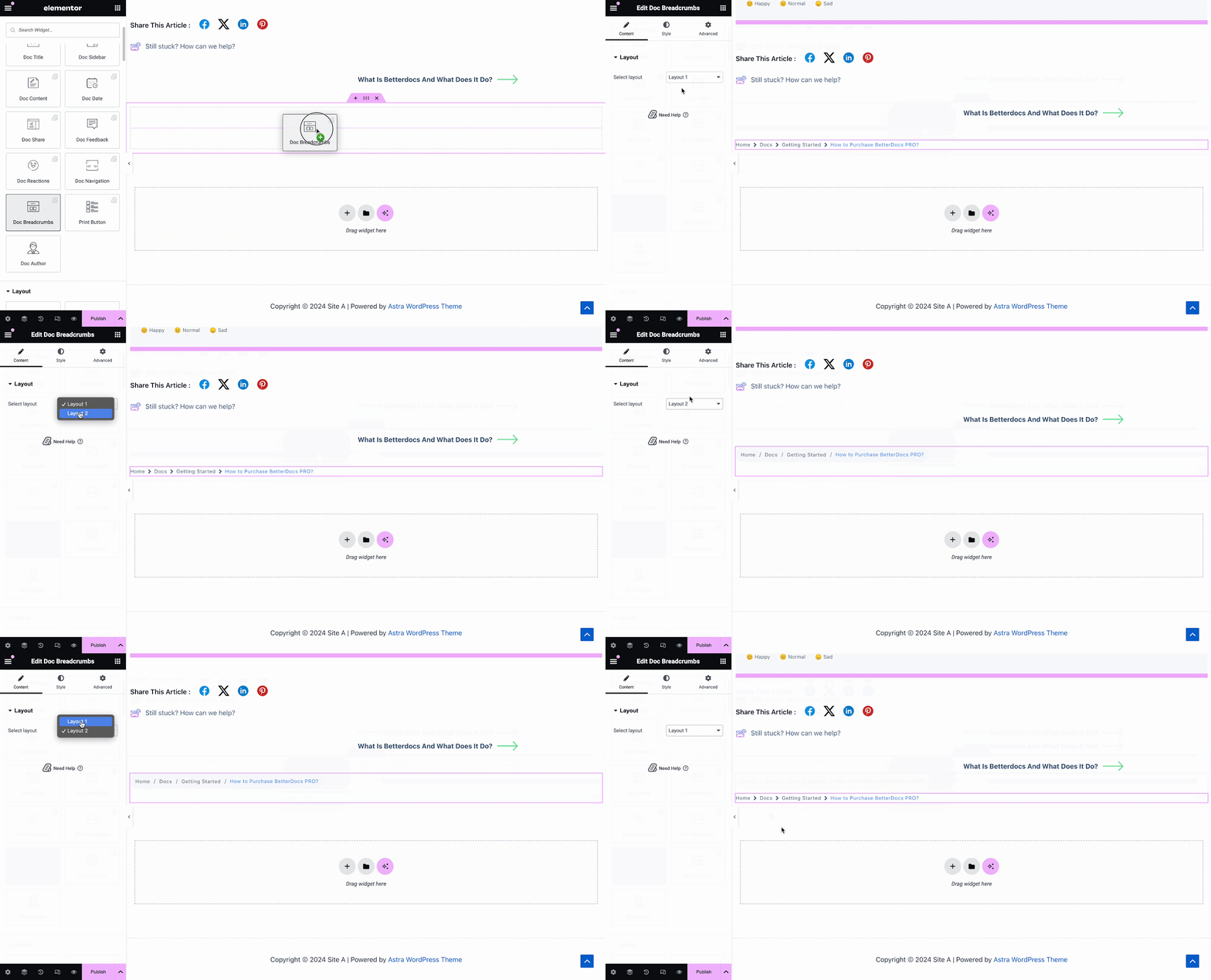
The Doc Breadcrumbs widget will let your visitors keep track of their current location while exploring docs. Simply drag and drop this widget and you will find two layouts on the General tab.
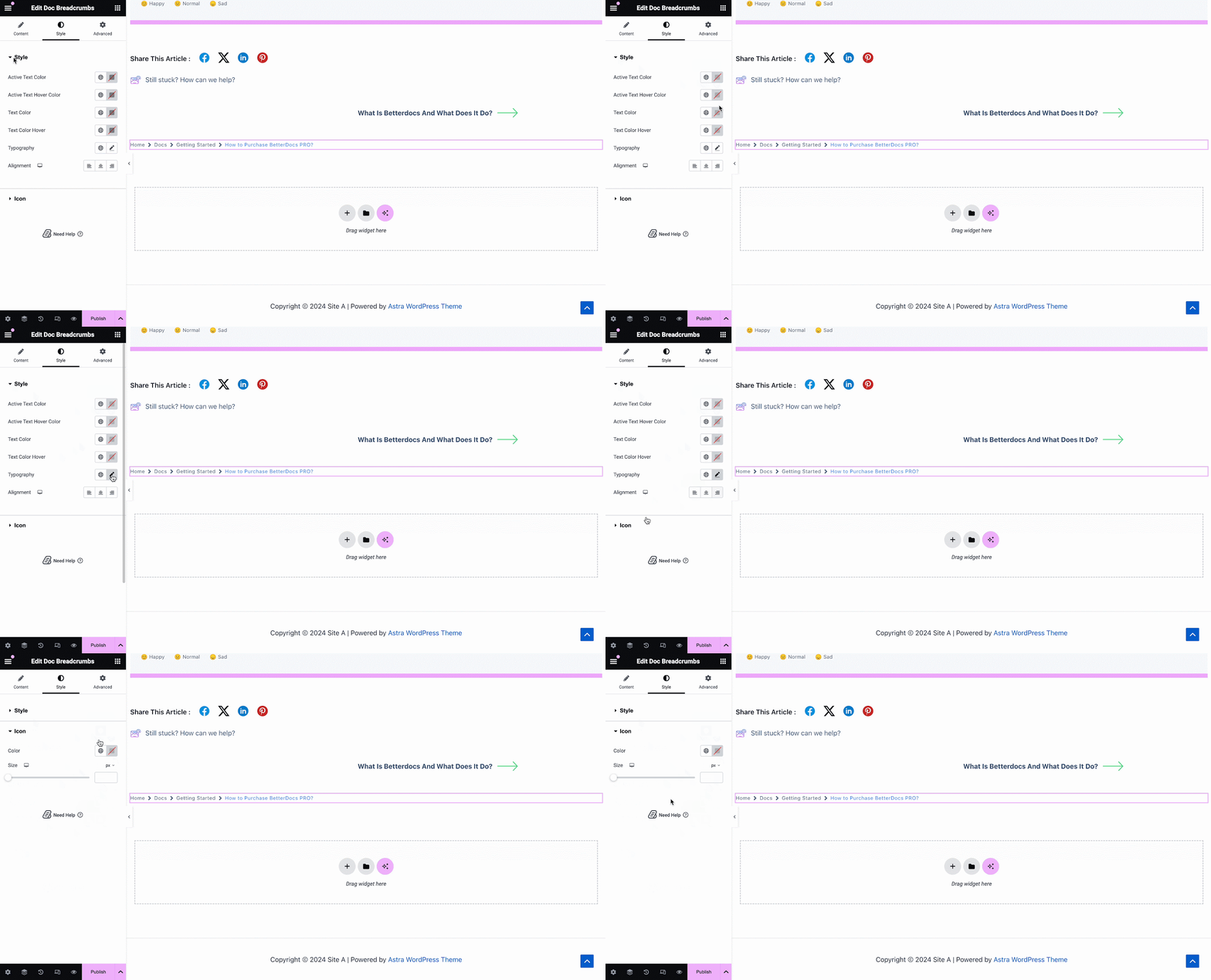
On the Style tab, you can customize the margin, padding, typography, and colors for Style तथा Icon.
Print Button #
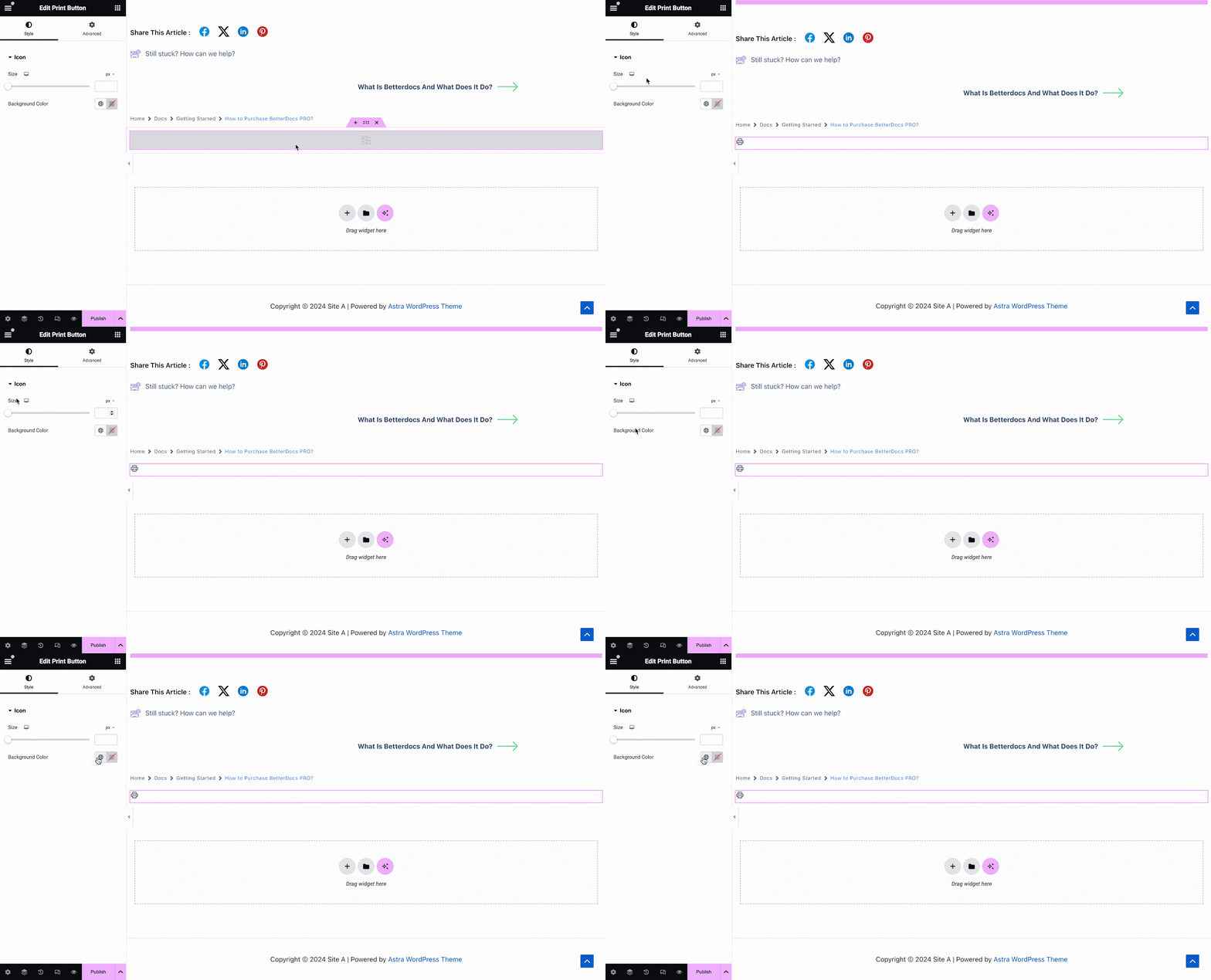
The Print Button widget lets you print your doc with a single click. Once you add the widget, you will have options to change icon size and adjust colors.
चरण 3: शर्तें सेट करें और एकल डॉक्टर पृष्ठ टेम्पलेट प्रकाशित करें #
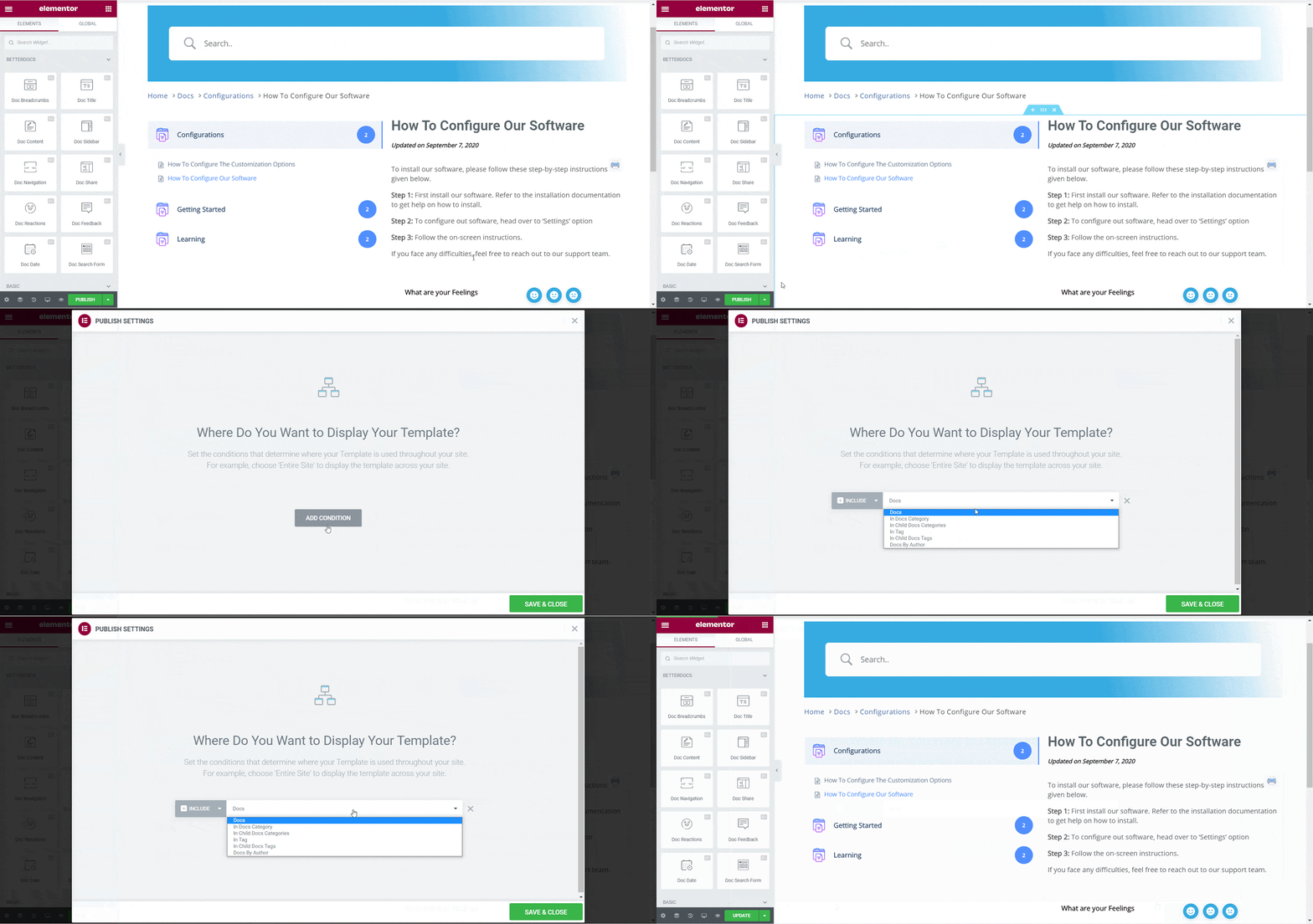
उपरोक्त चरणों के सफलतापूर्वक पूरा होने के बाद, आप अपना प्रकाशन कर सकते हैं सिंगल डॉक पृष्ठ टेम्पलेट जिसे आपने Elementor में डिज़ाइन किया है। बस पर क्लिक करें 'प्रकाशित button and a popup will appear asking you to set conditions. This step is optional and it lets you decide the conditions under which your Single Doc page will be available to site visitors.
अगला, पर क्लिक करें 'सहेजे बंद करें'। आपका सिंगल डॉक पेज टेम्प्लेट अब Elementor में सहेजा गया है और अन्य एकल डॉक्यूमेंटेशन पेजों के लिए फिर से उपयोग किया जा सकता है।
अंतिम परिणाम #
इन मूल चरणों का पालन करके आप अपना स्वयं का रिवाज बना सकते हैं Elementor में सिंगल डॉक और यहां तक कि उन्हें तुरंत फिर से उपयोग करें।
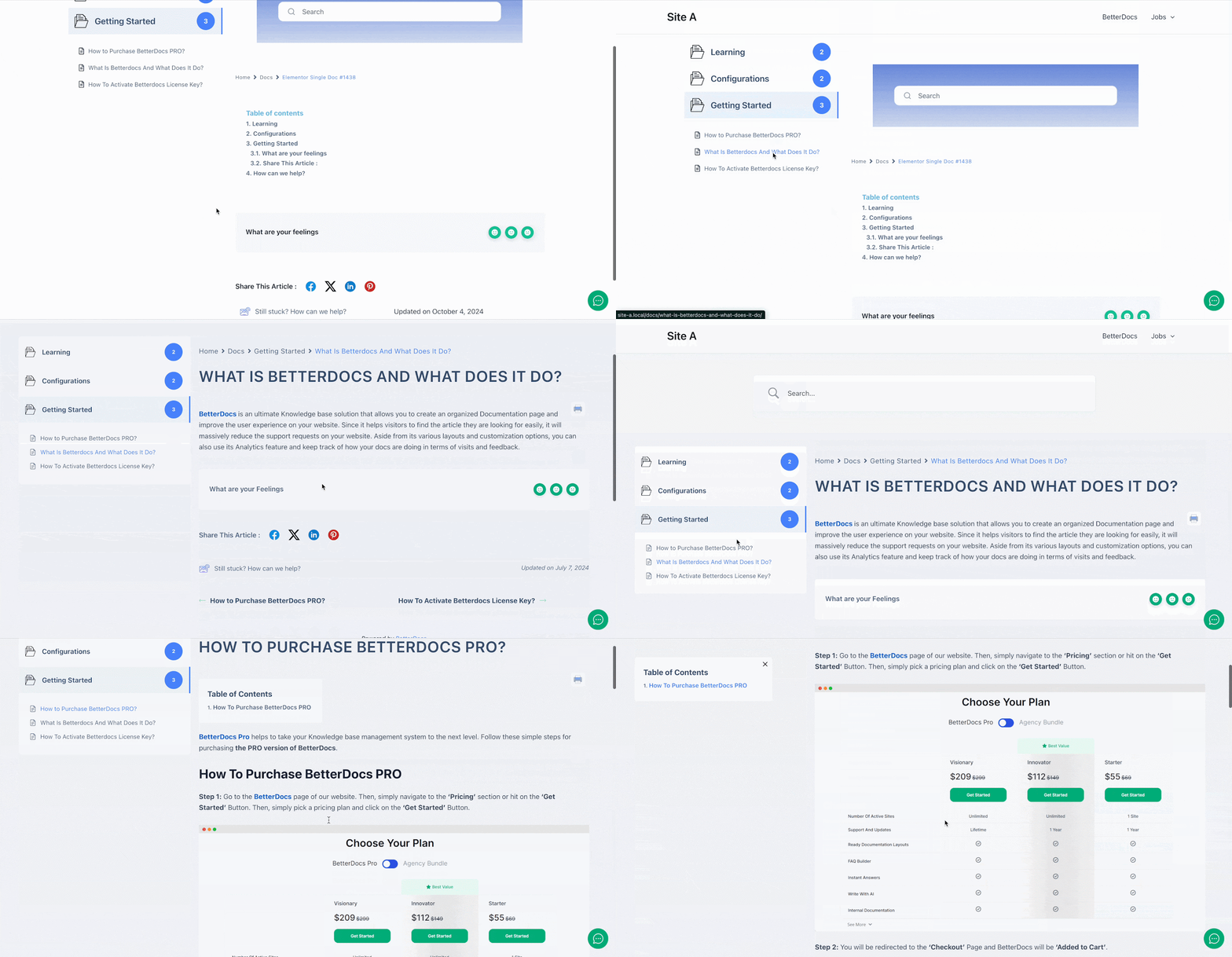
की मदद से BetterDocs, यह है कि आप Elementor के साथ तेजस्वी एकल डॉक टेम्प्लेट बना सकते हैं और अपनी साइट के पाठकों को विस्मित कर सकते हैं।
फँस गया हूँ? बेझिझक हमारे संपर्क करें टीम का समर्थन.


